What if your phone could replace your PC in an emergency - not as a compromise, but as a genuinely usable workstation?
For years, I have been demonstrating how Windows 365 can be accessed from almost anywhere - previously through the Remote Desktop client and now through the Windows App. One of my favorite setups involves connecting a phone to an external monitor, adding a keyboard and mouse, and showing people that their Windows 365 Cloud PC delivers the same familiar desktop experience regardless of the device in their hand. The reactions are always the same - surprise, followed by “wait, how is this possible?”
This started with Samsung DEX on my Samsung phone, and it has been a reliable part of my demo kit ever since. The setup is deliberately compact and portable - a phone, a Surface Thunderbolt 4 Dock connected via USB-C, and a pair of Logitech peripherals. Everything fits in a small bag and works with whatever monitor is available at the venue.
However, while preparing for a recent session, I discovered something unexpected on my Google Pixel 8 Pro.
Android 17, with its most recent update, now offers a full desktop mode when connected to an external monitor via USB-C. Not just screen mirroring - a proper desktop environment with taskbar, windowed apps, and independent use of the phone screen. The experience is remarkably similar to Samsung DEX, and it opens up the question of whether this is becoming a platform-level feature rather than a hardware-specific one.
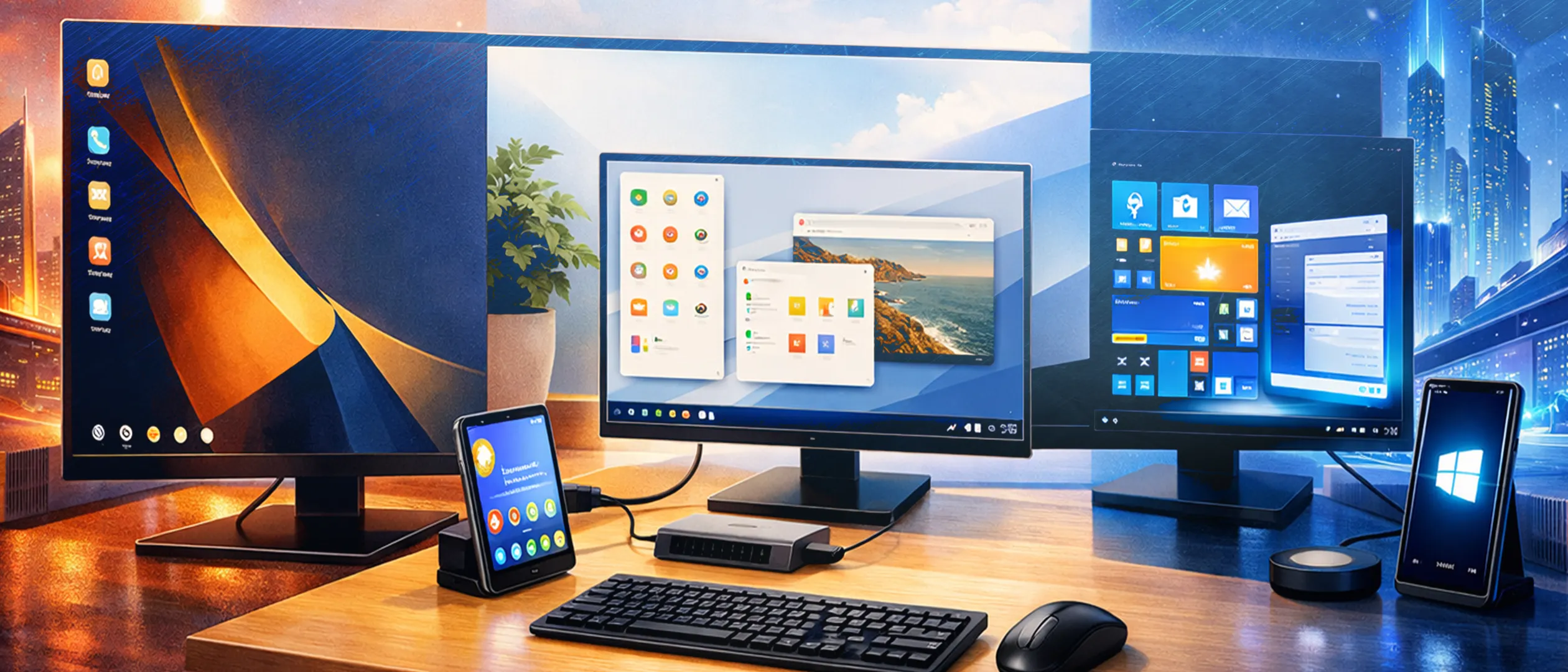
Based on my experience with both setups, I want to walk through what Samsung DEX is, how Android 17 brings similar capabilities to non-Samsung devices, and why the Windows Phone dream of a phone that doubles as a PC is finally becoming reality - this time through Windows 365.
The setup I use for demonstrations
Show demo kit detailsThe full kit I carry between sessions consists of the following:
- Phone: Samsung Galaxy and Google Pixel 8 Pro
- Dock: Surface Thunderbolt 4 Dock, connected via USB-C
- Keyboard: Logitech MX Mechanical Mini
- Mouse: Logitech MX Anywhere 3S
- Monitor: Whatever is available at the venue
I chose the Logitech MX Mechanical Mini and MX Anywhere 3S not only for their compact size but because both devices support switching between three receivers. This means I can pair them to my Samsung phone setup, my Windows 365 Link setup, and a third device without re-pairing. One keyboard, one mouse, three scenarios. That flexibility is exactly what makes this kit practical for live demonstrations.
For stand demos where I cannot rely on venue equipment, I also carry an 18.5" portable touch monitor . It is a cheap but great addition to the kit - it supports touch input from both Windows 365 Link and the mobile phones, which means I can demonstrate touch interactions anywhere.
What is Samsung DEX
Samsung DEX is a desktop experience built into Samsung Galaxy phones and tablets, available since the Galaxy S8 in 2017 - nearly a decade of maturity at this point. When you connect a Samsung device to an external monitor - either wirelessly or via USB-C - DEX transforms the interface from a mobile layout into a traditional desktop environment. You get a taskbar, resizable windows, right-click context menus, and full keyboard and mouse support.
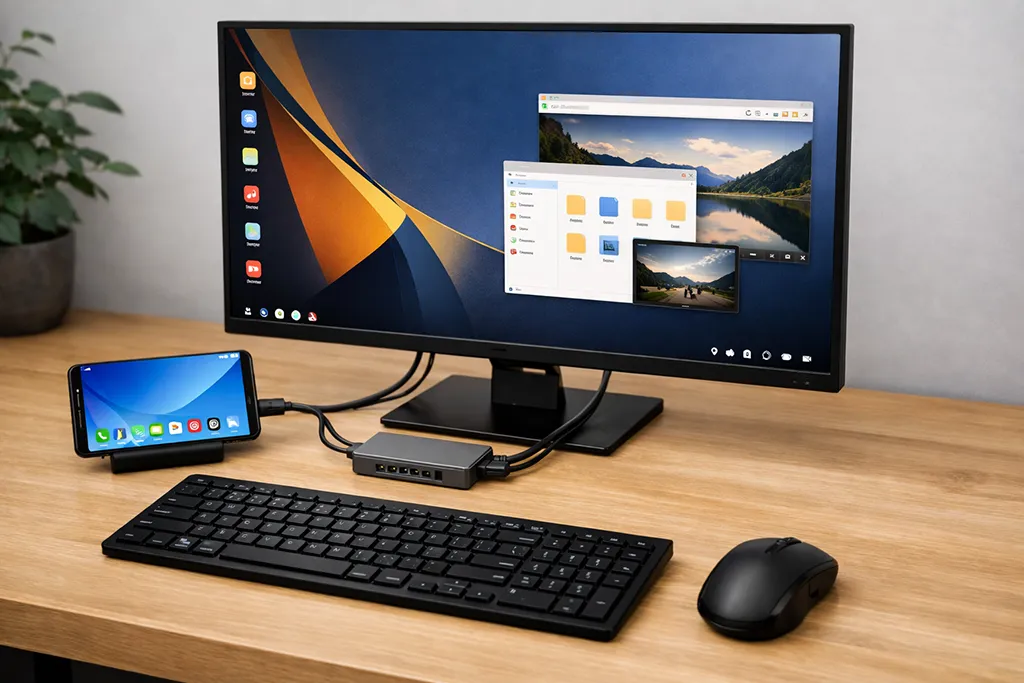
Samsung DEX is not a separate operating system. It is a mode that runs on top of Android, allowing you to use your phone’s apps in a desktop-friendly layout while the phone screen remains independently usable. You can take a call, reply to a message, or browse on your phone while the external monitor runs a completely different workflow.
For my Windows 365 demonstrations, Samsung DEX provides the foundation. I connect my Samsung phone to a Surface Thunderbolt 4 Dock via USB-C, which gives me an external monitor, power delivery, and USB ports for peripherals. The Windows App launches in full screen on the external monitor, and from that point forward, the experience is indistinguishable from sitting at a physical PC. The Windows 365 Cloud PC responds to the keyboard and mouse as expected, and the full desktop is there - taskbar, Start menu, applications, everything.
Android 17 desktop mode on Google Pixel
Android 17 on Google Pixel changes the desktop mode story entirely. Until recently, this capability was exclusive to Samsung through DEX. Other Android phones could mirror their screen to an external display, but mirroring is not the same as a desktop experience. Mirroring gives you a larger version of your phone screen - same layout, same limitations, same single-app focus - this changed with Android 17.
While preparing for a speaking session, I connected my Google Pixel 8 Pro to my Surface Thunderbolt 4 Dock and noticed something new. Instead of the usual screen mirroring, the phone presented a choice: Mirror or Desktop. Selecting Desktop launched a full desktop environment on the external monitor - a taskbar at the bottom, windowed applications, and the ability to use the phone independently.
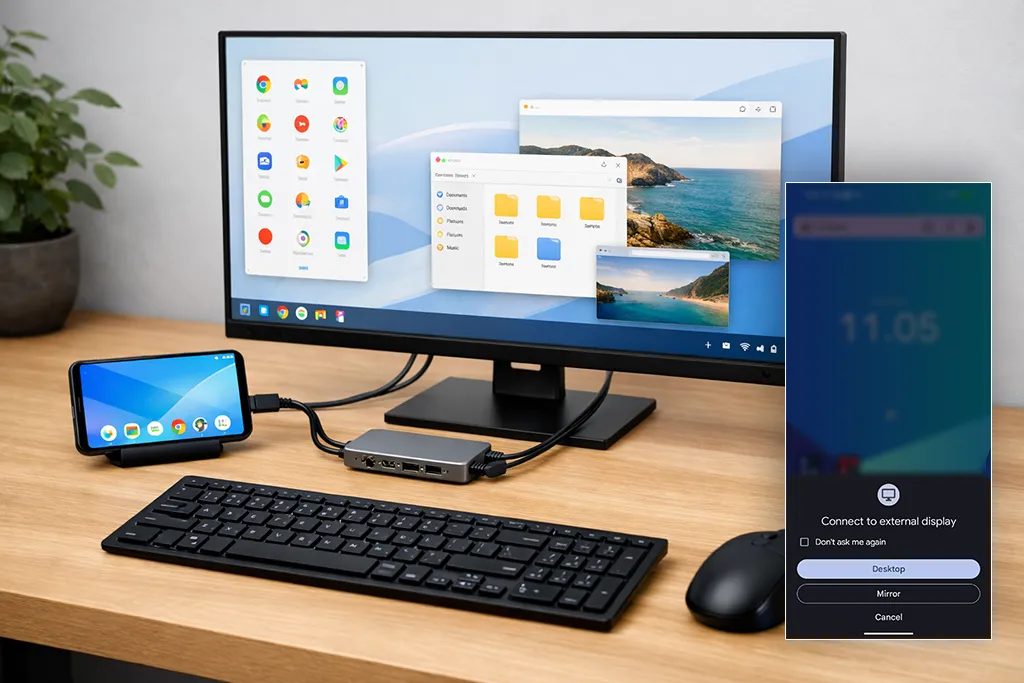
This is the same fundamental experience that Samsung DEX has offered for years, but now it is available on a stock Android device without any Samsung-specific hardware or software. The Google Pixel 8 Pro runs pure Android - no manufacturer overlay, no proprietary desktop layer. This strongly suggests that desktop mode is becoming a platform-level Android feature rather than a hardware-exclusive capability.
Note
Android 17 is not the starting point. Android 16 already ships with desktop windowing for connected displays, but the capability is hidden behind Developer options - you have to unlock the developer settings and turn on the desktop experience toggle before an external monitor gives you a desktop instead of a mirrored phone screen. That makes it a great way to test the workflow on an Android 16 device today, but not something to hand to end users. What changes with Android 17 is that the experience is available by default. For technical background on how connected displays behave, see Support connected displays .Is this a hardware feature or an Android 17 feature
Whether desktop mode is a hardware-specific capability or a platform-level feature is the question I set out to answer. Based on what I have observed, the evidence points clearly toward this being an Android 17 platform feature:
- The Google Pixel 8 Pro has no proprietary desktop hardware or software - it runs stock Android.
- The feature appeared after the most recent Android 17 update, not after a hardware change.
- The implementation follows the same pattern as Samsung DEX - independent phone screen, desktop on external display, full keyboard and mouse support.
- The Android Open Source Project (AOSP) documentation explicitly describes desktop windowing as a platform configuration controlled by the
config_isDesktopModeSupportedflag - when enabled, the system automatically treats eligible external displays connected by DisplayPort or HDMI as candidates for desktop windowing. - Google has been signaling interest in desktop experiences through ChromeOS integration and Android large-screen improvements for several years.
There is an important caveat. Android updates do not roll out the way Windows updates do. Most Android devices receive updates through a chain that starts with Google and passes through the device manufacturer before reaching the carrier. Each step adds its own timeline.
Google Pixel devices receive Android 17 directly from Google on day one. However, Samsung, OnePlus, Motorola, and other OEM devices may wait weeks or months for the same update. Some older or lower-end models may never receive it at all. For organizations considering this as part of their Windows 365 strategy, that update cadence matters. The choice of phone brand and model directly influences when - or whether - desktop mode becomes available to their users.
The implication is significant. If desktop mode is part of Android 17 at the platform level, every Android phone that receives the update could potentially support this workflow. That transforms the Windows 365 accessibility story from “you need a Samsung phone” to “you need any modern Android phone.”
What this means for Windows 365
Windows 365 already works on phones through the Windows App - that is not new. What changes with platform-level desktop mode is the quality of that experience. Running the Windows App in a desktop environment with an external monitor, full keyboard, and mouse is fundamentally different from using it on a 6-inch phone screen with touch input.
With desktop mode, you get:
- A full-size Windows desktop on an external monitor
- Keyboard and mouse input that behaves identically to a traditional PC
- The ability to use your phone for calls, messages, and other tasks simultaneously
- A familiar, productive workspace with no additional hardware beyond a dock and peripherals
This turns a phone into a legitimate thin client for Windows 365.
Everyday use on the road
Desktop mode is not just for emergencies. For users who travel frequently or work in flexible roles where a dedicated laptop is not always practical, a phone with desktop mode offers a genuine daily driver setup. Arrive at a hotel, a co-working space, or a customer site with a USB-C dock available, connect your phone, and you have a full Windows 365 desktop in seconds. No laptop to carry, no device to charge overnight, no risk of leaving hardware behind.
Disaster recovery and device replacement
Disaster recovery and device replacement scenarios are where the real value of phone-based desktop mode emerges. Consider these scenarios:
- Lost or stolen laptop: An employee loses their device while traveling. With a USB-C dock at the hotel or office and their phone, they can connect to their Windows 365 Cloud PC and continue working within minutes. No IT ticket required. No waiting for a replacement device.
- Broken primary device: A laptop fails on a Monday morning. Instead of losing a full day waiting for a replacement, the user connects their phone to a monitor and continues their work.
- Windows 365 Reserve: For organizations using Windows 365 Reserve - where Cloud PCs are provisioned on-demand when needed - a phone with desktop mode becomes a natural access point. The user does not need a dedicated PC to spin up their reserve instance.
- Business continuity: In broader disaster recovery planning, knowing that every employee carries a potential workstation in their pocket changes the conversation about device redundancy.
The user experience in these scenarios is not a compromise. With a decent monitor, keyboard, and mouse, the Windows 365 Cloud PC delivers the same performance, the same applications, and the same desktop regardless of whether the connection comes from a laptop, a Windows 365 Link, or a phone in desktop mode.
Caution
After disconnecting from an external monitor, the phone’s display scaling may not revert to its original setting - leaving all icons and text unusually small. For IT professionals, this is a quick fix in Settings > Display > Screen Resolution or Display size. For non-technical users, this can be confusing and may generate support calls. Factor this into your rollout communication if you are planning phone-based desktop mode as part of your Windows 365 strategy. I hope this will become more stable in future builds.Note
In my testing, USB webcams connected through the dock are not recognized by the phone - the camera simply does not appear as an available device. The user must rely on the phone’s built-in camera instead. For video calls, Microsoft Teams does work from within the Windows 365 Cloud PC on a phone, but in my experience it is not the best option for longer meetings. I found myself reverting to running Microsoft Teams directly on the phone for extended calls - the audio and video experience feels more reliable there.Note
Screen resolution behavior differs between the two setups. The Google Pixel scales well across different monitor sizes and resolutions, while Samsung DEX on my device stretches the image to cover the entire screen on ultra-wide monitors rather than maintaining the correct aspect ratio. Standard HD monitors display correctly.Could this come to iOS and iPadOS
Desktop mode on iOS and iPadOS is something I genuinely hope for. Apple already supports external monitor output on iPad with Stage Manager , and iPhones can mirror to external displays. However, neither iOS nor iPadOS currently offers a true desktop mode where the phone operates independently from the external screen.
Microsoft recently added Surface Arc Mouse support in the Windows App for iOS , which signals continued investment in making the peripheral experience on Apple devices more capable. The building blocks are gradually coming together - external display output, mouse support, and keyboard input. However, the missing piece remains a true desktop mode where the device screen and the external display operate independently.
If Apple were to introduce a desktop mode similar to Samsung DEX or Android 17’s implementation, it would complete the picture. Every major mobile platform would then offer the same capability - connect to a dock, get a desktop, access your Windows 365 Cloud PC.
The benefits would be the same:
- Emergency access when a primary device is unavailable
- A lightweight travel setup without carrying a laptop
- A familiar workspace for disaster recovery scenarios
- Full productivity with Windows 365 or Windows 365 Reserve without a dedicated PC
Whether Apple will move in this direction is uncertain. Their approach to external display support has been cautious and incremental. However, the demand is there, and Android 17 proving that this works at the platform level may accelerate the conversation.
I do not use iOS myself, so my visibility into what Apple is planning or testing is limited. If you have knowledge of desktop mode capabilities coming to iOS or iPadOS - or have already seen something working - I would love to hear about it. Please reach out.
Final thoughts
What started as a Samsung-exclusive feature is becoming a standard capability of modern smartphones. Android 17 bringing desktop mode to stock Android devices like the Google Pixel 8 Pro is not just a nice-to-have - it fundamentally expands how and where people can access Windows 365.
For organizations investing in Windows 365 or planning for Windows 365 Reserve , this shift means that every employee with a modern Android phone already carries a potential workstation. Pair that phone with a USB-C dock and a keyboard and mouse, and you have a fully functional desktop experience that connects to a Cloud PC in seconds. No imaging, no provisioning, no waiting.
The Windows Phone dream of a phone that could be your PC never truly died. It just moved to a different platform - and this time, it is not limited to one manufacturer.
–Jesper
Header image attribution: Image created with help from Microsoft Copilot