
Have you ever spent minutes searching for a file you know exists somewhere on your PC - but you cannot remember the exact name, folder, or even what you called it?
Finding files has always been one of those friction points in daily work. Traditional search requires you to remember exact file names, specific keywords, or at least which folder you saved something in. When you are juggling dozens of documents, presentations, and images across local storage and cloud services like Microsoft OneDrive, that approach breaks down quickly. I have been in that situation more times than I care to admit - searching for “that document about the deployment plan” by guessing file names until something sticks.
Semantic Search on Copilot+ PCs changes this entirely. Instead of relying on exact matches, you can describe what you are looking for in your own words - and Windows understands what you mean. Based on my experience with this feature over the past months, it has completely changed how I find and interact with files. What follows is a look at what Semantic Search is, how to enable it, and practical examples that show its value. It is one of the most overlooked AI features in Windows 11.
What is Semantic Search?
Semantic Search is an AI-powered upgrade to Windows Search available on Copilot+ PCs and Windows 365 AI-enabled Cloud PCs running Windows 11 version 24H2 or later. Unlike traditional search that matches exact file names and keywords, Semantic Search understands the meaning behind your query. It finds files based on their content and visual elements - even when your search terms do not match the file name or contents word for word.
When you use Semantic Search, Windows uses the on-device Neural Processing Unit (NPU) to understand the intent behind your query. For example, searching for “compliance policy for corporate devices” can surface a file named intune-win11-baseline-config.docx - even though none of your search words appear in the file name. The same applies to images: searching for “screenshot of a failed deployment” can find matching images regardless of their file names.
Semantic Search is accessible from Windows Search, File Explorer, the Photos app, Settings, and the Microsoft Copilot app. You can use it from wherever you happen to be working.
Image viewer
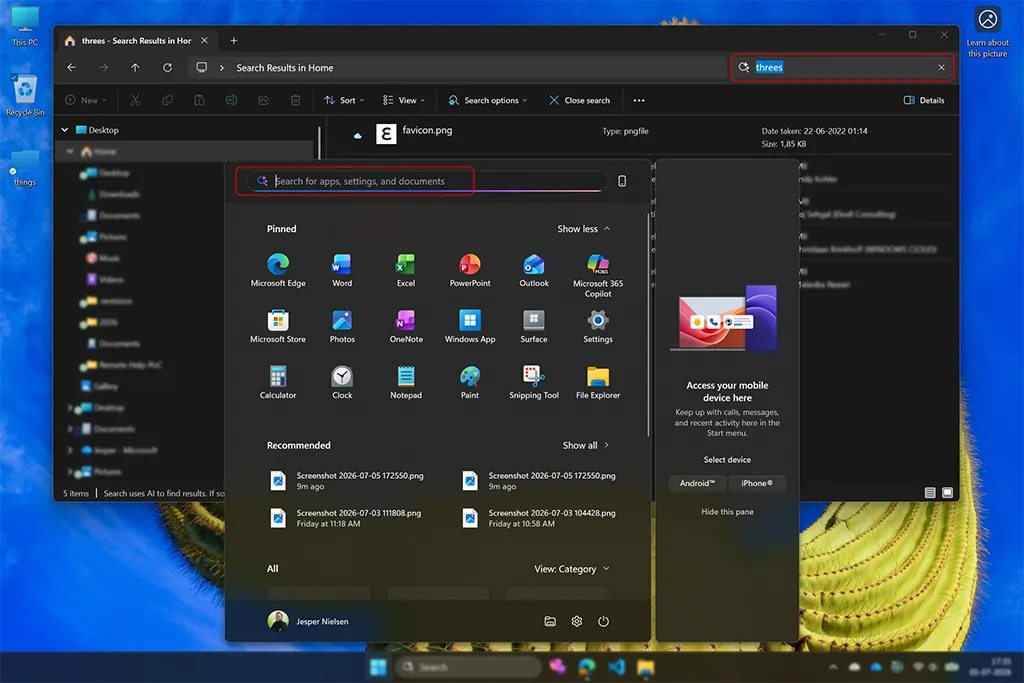
The key capability that sets Semantic Search apart from traditional indexing is its ability to understand relationships between concepts. It does not just look for the words you typed - it understands what you mean. Searching for “my resume” can find a file called cv-jesper-2026.docx. Searching for “recipe with chicken” can locate a document with a tostada recipe that mentions chicken in the content.
All processing happens locally on your device using the NPU - your search queries and file contents are not sent to the cloud. This is an important distinction for professionals handling sensitive documents and for organizations with strict data residency requirements.
The quickest way to confirm Semantic Search is available on your device is to look for the sparkle icon in the Windows Search box. If you see it, you are good to go. If the icon does not appear, the details section below walks through verifying your hardware and AI components.
Verifying Copilot+ PC hardware and AI components
Click to readVerifying your Copilot+ PC status
A Copilot+ PC requires specific hardware, including:
- A Neural Processing Unit (NPU) capable of 40+ TOPS (Trillions of Operations Per Second)
- At least 16 GB of RAM
- 256 GB or more storage
- Windows 11 version 24H2 or later
To check your device specifications:
- Open Settings and navigate to System > About
- Look for your processor - Copilot+ PCs typically feature Qualcomm Snapdragon X Elite/Plus, Intel Core Ultra (Series 2), or AMD Ryzen AI 300 series processors
- Verify you have at least 16 GB of RAM
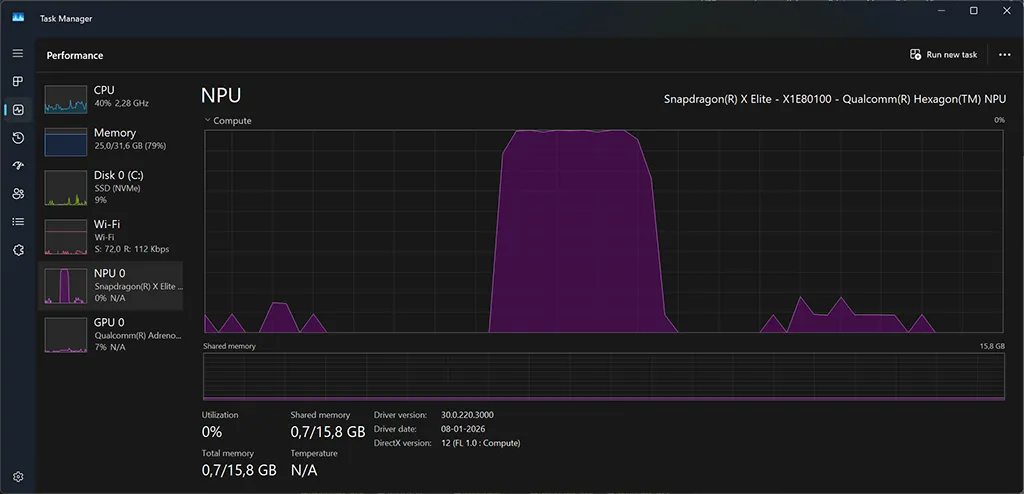
You can also open Task Manager (Ctrl + Shift + Esc) and navigate to the Performance tab to look for NPU in the left sidebar. However, seeing an NPU listed does not guarantee Copilot+ PC status - the NPU must be capable of 40+ TOPS, which Task Manager does not display.
Note
You do not necessarily need physical Copilot+ hardware. Windows 365 AI-enabled Cloud PCs also support Copilot+ capabilities, including Semantic Search (called “Improved Windows search” in the Windows 365 context) and Click to Do. These features are streamed securely from the Microsoft Cloud to any device. This means organizations can deliver the Copilot+ experience to users without upgrading their physical devices.
Windows 365 AI-enabled Cloud PCs require a Windows 365 Enterprise SKU with at least 8 vCPU, 32 GB of RAM, and 128 GB of storage. The Cloud PC must be deployed in a supported Azure region . AI features are disabled by default - IT administrators must explicitly enable them through Microsoft Intune before users can access the capabilities.
This capability is currently available through the Microsoft Frontier Program as a public preview. Future availability is subject to change based on preview results.
Verify Windows AI components
Semantic Search relies on Windows AI components that should be installed automatically on Copilot+ PCs. To verify these components are present:
- Open Settings and navigate to System > AI Components
- Verify that the required AI components are installed and up to date
You can also open Settings and search for “AI Components” to go directly to the page.
You should see these components:
- AI Image Search
- AI Semantic Analysis
- AI Settings
If any components are missing or show as unavailable, check for Windows updates to ensure all AI features are properly installed. For detailed version information and release history, see Release information for AI components on Microsoft Learn.
Understanding the semantic index
The semantic index is the foundation that makes natural language file search possible. Understanding how it works helps you get the most out of the feature and troubleshoot when searches do not return expected results.
How semantic indexing works
Traditional Windows Search creates an index based on file names, metadata, and text content - matching your search terms against stored keywords. The semantic index goes further by creating vector representations of your files that capture meaning, not just words. This allows Windows to understand that “quarterly financial summary” and “Q3 budget overview” refer to similar concepts.
The semantic indexing process runs in the background using the NPU, which means it does not noticeably affect CPU performance or battery life. When you add, modify, or delete files, the semantic index updates as files change - you do not need to rebuild it manually.
Image viewer
What gets indexed
Semantic Search creates its index from files in your configured search locations. The following content types are supported:
| Content type | What gets indexed | Examples |
|---|---|---|
| Documents | Text content, metadata, and document structure | .docx, .pdf, .pptx, .xlsx, .txt |
| Images | Visual content, detected objects, and scene descriptions | .jpg, .jpeg, .png, .webp, .svg |
| Emails | Subject lines, body text, and attachments (via Microsoft Outlook) | Microsoft Outlook indexed content |
| Cloud files | Microsoft OneDrive files synced or available on-demand | All supported file types in Microsoft OneDrive |
For images, “visual content” means the AI analyzes what the image actually shows - objects, scenes, text within the image, and spatial relationships. A photo of a whiteboard gets indexed based on its visible content, not just its file name or EXIF metadata. This is what makes queries like “whiteboard with architecture diagram” possible.
For Microsoft OneDrive files marked as on-demand (cloud-only), Semantic Search can still surface them in results based on available metadata and content that has been previously synced. Files that have never been opened locally may have limited semantic indexing until they are downloaded.
File types not listed in the table - such as source code files, compressed archives, or proprietary formats - are not semantically indexed. They still appear in traditional keyword search results based on file names and metadata, but Semantic Search will not understand their content.
Note
Semantic Search is currently optimized for select languages, including English, Chinese (Simplified), French, German, Japanese, and Spanish. Search accuracy may vary for content in other languages.Semantic index vs. traditional index
The semantic index works alongside the traditional Windows Search index - it does not replace it. The two indexes complement each other:
| Aspect | Traditional index | Semantic index |
|---|---|---|
| Search method | Exact keyword matching | Natural language understanding |
| File name search | Excellent | Good (understands intent) |
| Content search | Keyword-based | Meaning-based |
| Image search | Metadata and tags only | Visual content recognition |
| Processing | CPU-based | NPU-based |
| Availability | All Windows PCs | Copilot+ PCs and Windows 365 AI-enabled Cloud PCs |
When you search on a Copilot+ PC, Windows queries both indexes at once and merges the results. This means exact file name matches still appear instantly (traditional index), while conceptually related files surface alongside them (semantic index). You do not need to choose between the two - the system uses whichever index produces the most relevant results for your query.
The traditional index still excels at precise lookups. If you know the exact file name or a specific keyword that appears in the document, traditional search finds it faster. Semantic Search shines when you cannot recall those specifics - when you remember what the file was about but not what you called it. In practice, the two approaches cover each other’s weaknesses.
Enabling Semantic Search
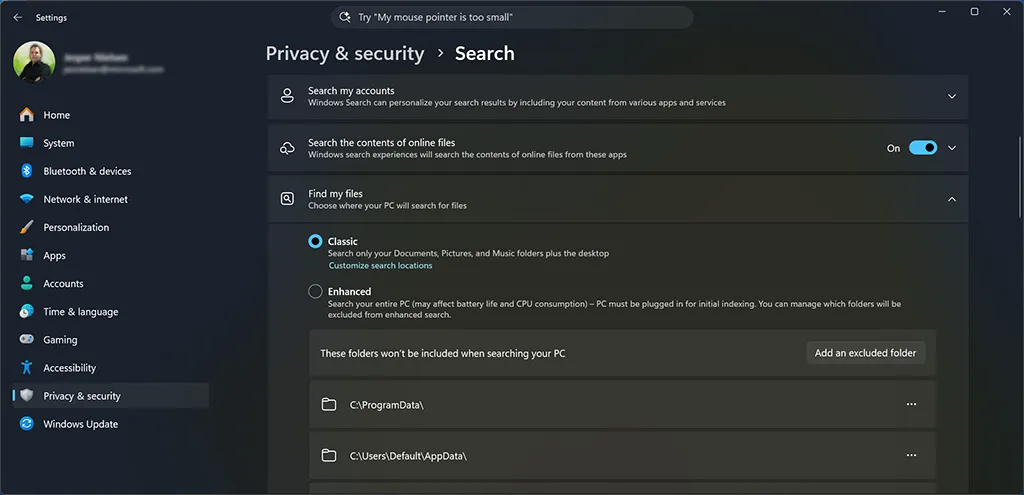
Semantic Search is available automatically on Copilot+ PCs - there is no separate toggle to enable it. The feature activates when the required AI components are installed and the search index is configured. To verify and optimize your search settings, follow these steps:
- Open Settings (Windows key + I)
- Navigate to Privacy & security > Search
- Under Find my files, choose your preferred indexing scope - Classic indexes your Documents, Pictures, Music, and Desktop folders, while Enhanced indexes your entire PC
For most users, Classic mode is sufficient. It already covers the standard user profile folders - Documents, Pictures, Music, and Desktop - where you typically store your files. Only switch to Enhanced if you regularly store files outside these locations.
Image viewer
Tip
If Semantic Search does not appear to work, ensure your device has the latest Windows updates installed. The feature requires Windows 11 version 24H2 with specific cumulative updates and the AI components listed in the hardware verification section above. You can check for updates in Settings > Windows Update.Configuring search locations
To get the most complete results from Semantic Search, consider which folders and locations are included in the search index:
- Open Settings > Privacy & security > Search
- Under Find my files, select Enhanced to index your entire PC, or keep Classic and customize locations
- If using Classic mode, select Customize search locations > Modify to add specific folders
- If you use Microsoft OneDrive, verify that your cloud folders are included in the indexing scope
If you keep files in non-standard locations outside your user profile, consider switching to Enhanced or adding those folders manually. This ensures Semantic Search covers everything you might need to find.
Enabling Semantic Search using Microsoft Intune
Click to readFor organizations managing Copilot+ PCs with Microsoft Intune, you can configure Semantic Search using configuration policies. This is especially useful for enabling or restricting the feature across your managed device fleet.
Using the Settings Catalog
- Sign in to the Microsoft Intune admin center
- Navigate to Devices > Windows > Configuration > Create > New policy
- Select Windows 10 and later as the platform
- Select Settings catalog as the profile type
- Click Create
- Provide a name (e.g., “Semantic Search Configuration”) and description
- Click Add settings and search for “Semantic indexing”
- Select the Search category and configure the following settings:
- Allow Semantic Indexing - Set to Enabled to allow the feature
- Click Next and assign the policy to your target groups
- Review and create the policy
Using CSP directly
The Semantic Search settings are available via the Policy CSP. You can use the following OMA-URI settings:
| Setting | OMA-URI | Values |
|---|---|---|
| Allow Semantic Indexing | ./Device/Vendor/MSFT/Policy/Config/Search/AllowSemanticIndexing | 1 = Enabled (default), 0 = Disabled |
| Search indexing mode | ./Device/Vendor/MSFT/Policy/Config/Search/AllowSearchToUseLocation | 1 = Enhanced, 0 = Classic |
Important
Semantic Search only functions on Copilot+ PCs with the required hardware. Deploying these policies to non-Copilot+ PCs will have no visible effect, though the settings will be applied.Using Semantic Search
Using Semantic Search does not require learning new tools or changing how you work - it meets you where you already are. The feature is accessible from Windows Search, File Explorer, the Photos app, Settings, and the Microsoft Copilot app. You can use natural language queries regardless of what you are doing at the time. The table below summarizes each entry point and when it works best:
| Method | How to use | Best for |
|---|---|---|
| Windows Search | Press Windows key and start typing a natural language query | Quick file lookups from anywhere |
| File Explorer | Open File Explorer, navigate to a folder, and type a description in the search bar | Searching within specific folder scopes |
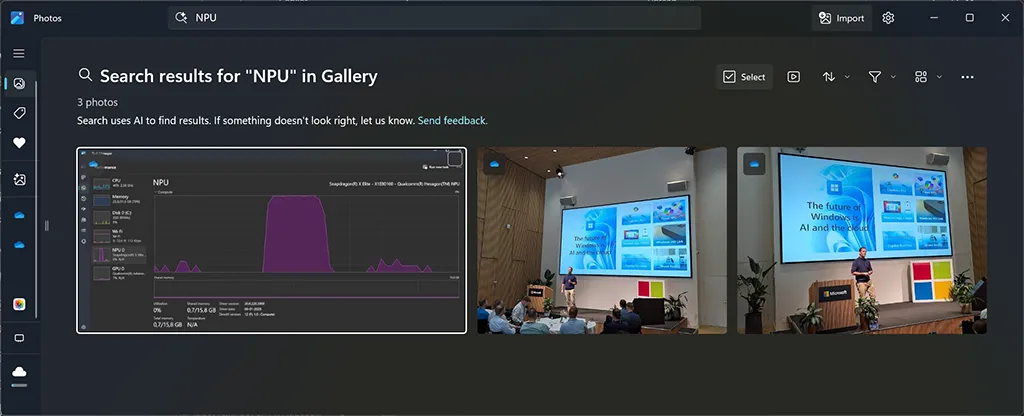
| Photos app | Open the Photos app and type a description of the image content in the search bar | Finding images by what they show |
| Settings | Open Settings and type a natural language description of what you want to configure | Finding settings you cannot locate by name |
| Microsoft Copilot app | Open the Microsoft Copilot app and use queries like “find my resume on my PC” | Conversational search with follow-up actions |
Search tips for better results
Semantic Search responds best to natural, descriptive language. Here are some tips for getting the most relevant results:
- Describe the content, not the file name - Instead of guessing file names, describe what the file contains. “presentation about endpoint security” works better than trying to remember if you named it
security-deck.pptxorendpoint-overview.pptx. - Use qualifying details - Add context like time, topic, or file type to narrow results. “budget spreadsheet from January” is more specific than just “budget”.
- Search for visual content in images - Describe what the image shows rather than guessing file names. “screenshot of an error message” or “photo of a whiteboard with architecture diagram” takes full advantage of the AI image understanding.
- Try different phrasings - If your first query does not return what you need, rephrase using synonyms or different descriptions. Semantic Search understands concepts, so “my CV” and “resume document” should return the same results.
Practical examples
Understanding what Semantic Search can do is one thing - seeing how it fits into real work is another. The following examples reflect scenarios I encounter regularly. They cover finding documents I cannot name, locating images buried in generic file names, and searching across storage without thinking about where I saved something. Each example demonstrates a different entry point and search style.
Finding documents by content description
When you need to find a specific document but cannot remember what you named it:
- Press the Windows key to open Windows Search
- Type a description of the document content, for example: “deployment plan for the new office”
- Review the results - Semantic Search surfaces files whose content matches your description, even if the file name is completely different
- Click the result to open the file directly
This is especially useful for professionals who work with many similarly named files. It also helps when you receive documents from others with naming conventions you did not choose.
Searching for images by visual content
When you need to find a specific image but your photos folder contains hundreds of files with generic names:
- Open the Photos app on your Copilot+ PC
- Type a description of the image content in the search bar, for example: “sunset over water” or “screenshot with a blue error dialog”
- Semantic Search analyzes the visual content of your images and returns matches based on what the images actually show
- Browse the results and select the image you need
This removes the need to scroll through hundreds of thumbnails or maintain detailed file naming conventions for images.
Image viewer
Locating cloud files in Microsoft OneDrive
When you store files across both local storage and Microsoft OneDrive:
- Press the Windows key to open Windows Search
- Type a description of the file you are looking for, for example: “project proposal shared with the team”
- Semantic Search searches across both your local files and Microsoft OneDrive files that are synced or available on-demand
- Results indicate whether the file is stored locally or in the cloud
This unified search experience means you do not need to remember whether you saved a file locally or in Microsoft OneDrive - Semantic Search finds it regardless of location.
Finding settings you cannot locate
When you need to change a Windows setting but do not know where Microsoft placed it:
- Open Settings (Windows key + I)
- Type a natural language description in the search bar, for example: “stop apps from running at startup” or “change what happens when I close the laptop lid”
- Semantic Search understands your intent and surfaces the relevant settings page, even when your description does not match the official setting name
This is especially helpful for IT professionals who need to quickly locate settings across the ever-growing Windows Settings app.
Searching within the Microsoft Copilot app
When you want a more conversational search experience with follow-up capabilities:
- Open the Microsoft Copilot app on your Copilot+ PC
- Type a query like “find images of bridges at sunset on my PC” or “find the file with the chicken tostada recipe”
- Copilot uses semantic file search to locate matching files on your device
- You can then ask follow-up questions or take actions on the results, such as summarizing a document or copying an image
The Microsoft Copilot integration adds a conversational layer to Semantic Search. You can refine your search through natural dialogue rather than rewriting queries by hand.
Note
You can adjust what the Microsoft Copilot app can access, retrieve, or read by navigating to the Copilot Settings under Permission settings. This gives you control over which files and locations Copilot can search.Privacy and data handling
Privacy is a key concern for any AI-powered feature that processes your files. Semantic Search addresses this with a clear on-device processing model.
Semantic Search handles your data with these privacy principles:
- On-device processing - On physical Copilot+ PCs, all semantic indexing and search processing happens locally on your device using the NPU. Your file contents and search queries are not sent to the cloud.
- No data sharing - Microsoft does not access, collect, or share your semantic index data. The index is stored locally and encrypted.
- User control - You can enable or disable Semantic Search at any time through Settings. Disabling the feature removes the semantic index from your device.
- Organizational control - IT administrators can manage Semantic Search through Microsoft Intune policies, allowing them to enable, disable, or configure the feature across managed devices.
For organizations with strict data governance requirements, the on-device processing model means that Semantic Search can be used without introducing new data residency concerns.
Note
On Windows 365 AI-enabled Cloud PCs, data processing works differently. AI features use a secure Windows 365 cloud service that processes data without storing it. No personal or user data is stored in the cloud service at any time or used for training AI models. All indexes are stored within the Cloud PC itself. IT administrators retain full control over enabling these features for specific users. For details, see Privacy and data in Windows 365 on Microsoft Learn.Other AI features in Windows 11 on Copilot+ PCs
Beyond Semantic Search, Copilot+ PCs include several on-device AI features that cover productivity, creativity, and communication. If you are exploring the AI features available on your Copilot+ PC, consider these related features:
Click to Do - instant actions on screen content: Take instant actions on anything visible on your screen - extract text from images, search the web for selected content, or summarize text without switching applications. For a detailed walkthrough, see my post on Exploring AI actions in Windows 11 - Click to Do.
Recall - searchable timeline of what you saw: Periodic, encrypted local screenshots and on-device indexing let you find previously seen content. Strong privacy controls exist. Great for retrieving information you forgot to bookmark or capture.
Cocreator - image generation and transformation: Integrated into Paint and select apps; combine sketches and prompts to produce new visuals or restyle existing images for documentation or marketing assets.
Windows Studio Effects - better video and audio: AI-powered camera and microphone enhancements (background blur/replacement, automatic framing, eye-contact correction, voice focus) for higher-quality meetings without extra hardware.
Live Captions with translation - real-time, local translation: Captions for any audio with on-device translation between many languages - useful for meetings with distributed teams.
For more details on these features, see Copilot+ PCs on the Microsoft website.
Final thoughts
Semantic Search marks a major shift in how we find files on our PCs. The old approach of remembering file names and folder structures has always been a workaround for a search system that could not understand what you actually meant. With Semantic Search, that limitation disappears - you describe what you are looking for, and Windows finds it.
IT professionals often manage large collections of documentation and configuration files. For them, searching by content description rather than file name removes a major source of daily friction. For knowledge workers dealing with files spread across local storage and Microsoft OneDrive, the unified search experience means one search covers everything.
The key to getting value from Semantic Search is building the habit of searching descriptively. Instead of trying to guess the file name, describe the content. Instead of browsing through folders, type what you remember about the file. After a few days of intentional use, you will find yourself wondering how you managed without it.
For organizations that cannot yet refresh their hardware fleet, Windows 365 AI-enabled Cloud PCs offer a path to deliver these same capabilities to users on any device. Semantic Search and Click to Do are streamed securely from the Microsoft Cloud. The feature is currently available through the Frontier Program as a public preview, with requirements starting at the 8 vCPU Windows 365 Enterprise SKU.
If you have a Copilot+ PC or access to an AI-enabled Windows 365 Cloud PC, I highly encourage you to verify that Semantic Search is enabled. Give it a try with your own files. And if you have not yet explored the other AI capabilities on Copilot+ PCs, there is a lot to discover. That includes Click to Do, Recall, and the features I mentioned above.
–Jesper
Header image attribution: Image created with help from Adobe Firefly