
Are you prepared for the retirement of Internet Explorer 11?
Microsoft has announced that Internet Explorer 11 will be retired on June 15, 2022. After this date, the Internet Explorer 11 desktop application will be disabled and no longer supported. If your organization still relies on legacy web applications that require Internet Explorer, now is the time to prepare.
The good news is that Microsoft Edge includes Internet Explorer mode (IE mode), which allows legacy sites to render using the Trident MSHTML engine from Internet Explorer 11 - all within the Microsoft Edge browser. This provides a seamless single-browser experience while maintaining backward compatibility.
Based on my experience with multiple deployments, I will walk you through how to disable Internet Explorer 11 using policies, how to create and host an Enterprise Mode Site List, and how to configure IE mode using Microsoft Intune.
Why disable Internet Explorer?
With Internet Explorer 11 retirement approaching on June 15, 2022, there are several compelling reasons to proactively disable it in your environment now:
- Preparation: Disabling IE early helps identify legacy application dependencies before the retirement deadline, giving you time to configure IE mode or remediate applications.
- User adoption: Getting users accustomed to Microsoft Edge now makes the transition smoother when Internet Explorer is no longer available.
- Testing: Validating that your Enterprise Mode Site List and IE mode configuration work correctly before the deadline reduces risk.
- Support: Addressing compatibility issues now, while you have time, is far better than scrambling on retirement day.
You might be tempted to simply remove Internet Explorer as a Windows feature. However, this approach can cause issues:
- Removing the feature can break application compatibility.
- Some Windows components and third-party applications depend on the Internet Explorer engine.
- The Trident engine is still required for IE mode to function in Microsoft Edge, and removing the IE feature breaks IE mode functionality.
The recommended approach is to disable Internet Explorer 11 as a standalone browser using Group Policy or Microsoft Intune:
- Prevents users from launching Internet Explorer directly.
- Redirects all Internet Explorer traffic to Microsoft Edge.
- Keeps the underlying engine available for IE mode and dependent applications.
- Provides a clean transition path for end users.
Since the policy to disable Internet Explorer 11 became available, I have been disabling IE in environments using this method. It ensures users have a single browser experience while legacy applications continue to work in IE mode, and more importantly, it surfaces issues early - giving you time to address them before Internet Explorer 11 retirement day.
Understanding IE mode
IE mode on Microsoft Edge allows organizations to run legacy web applications that require Internet Explorer within Microsoft Edge. When a user navigates to a site configured for IE mode:
- Microsoft Edge loads the page using the Internet Explorer rendering engine.
- The IE logo appears in the address bar indicating the site is running in compatibility mode.
- The user remains in Microsoft Edge - no separate browser window opens.
IE mode supports:
- All document modes and enterprise modes
- ActiveX controls (such as Java or Silverlight)
- Browser Helper Objects
- Internet Explorer security zone settings and Protected Mode
Users can easily identify when they are viewing a page in IE mode by looking for the indicator in the address bar.
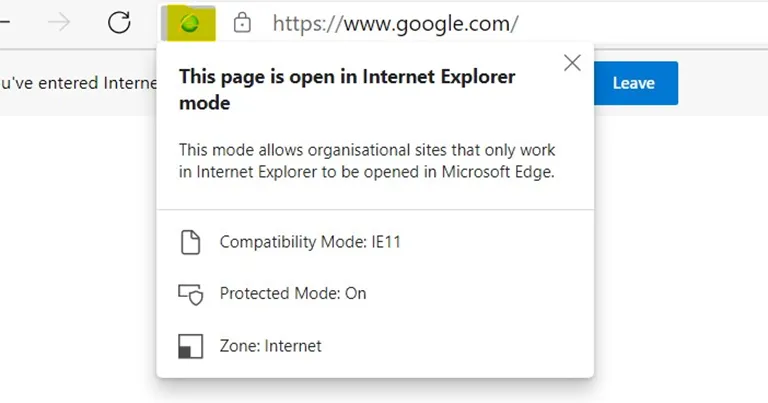
For more information, see What is Internet Explorer (IE) mode? .
The Enterprise Mode Site List
The Enterprise Mode Site List is an XML file that specifies which sites should open in IE mode. This list can be hosted on:
- A web server (HTTPS recommended)
- A network file share
- A local file path
The site list uses a specific XML schema to define sites and their rendering behavior:
<site-list version="1">
  <site url="legacy-app.contoso.com">
    <compat-mode>IE8Enterprise</compat-mode>
    <open-in>IE11</open-in>
  </site>
  <site url="intranet.contoso.com/app">
    <compat-mode>Default</compat-mode>
    <open-in>IE11</open-in>
  </site>
</site-list>
Example Enterprise Mode Site List XML
Site list elements
| Element | Description |
|---|---|
url | The site URL (can include paths for specific applications) |
compat-mode | The document mode (IE5, IE7, IE8, IE9, IE10, IE11, Default) |
open-in | Set to IE11 for sites that should open in IE mode |
Enterprise Mode Site List Manager
Microsoft provides the Enterprise Mode Site List Manager tool to help you create and manage your site list. This desktop application provides a graphical interface for:
- Adding and removing sites from your list
- Configuring compatibility modes for each site
- Adding multiple sites at once using a text or XML file import
- Searching for existing sites in your list
- Exporting your site list as an XML file
Getting started with Enterprise Mode Site List Manager is intuitive and relatively simple, and much easier than editing the Enterprise Mode Site List XML manually. The tool validates your entries and helps prevent common configuration errors such as including protocols in URLs or using invalid characters.
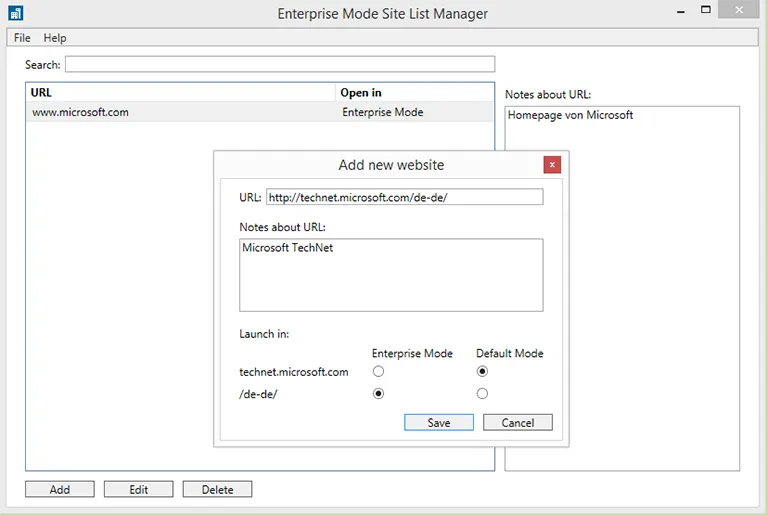
Enterprise Mode Site List Manager versions
There are two versions of the Enterprise Mode Site List Manager, each based on a different schema version. The schema version determines the XML structure of your site list:
- Schema v.1 uses
<rules>as the root XML element - the original format introduced with Internet Explorer 11 on Windows 7 and Windows 8.1 - Schema v.2 uses
<site-list>as the root XML element - introduced with Windows 10 in 2015, providing enhanced functionality and cleaner syntax
| Version | Schema | Download | Recommendation |
|---|---|---|---|
| Schema v.2 | Enterprise Mode schema, version 2 | [Download (schema v.2)](https://www.microsoft.com/download/details.aspx?id=49974 “Enterprise Mode Site List Manager (schema v.2) | Microsoft Download Center”) |
| Schema v.1 | Enterprise Mode schema, version 1 | [Download (schema v.1)](http://go.microsoft.com/fwlink/p/?LinkID=394378 “Enterprise Mode Site List Manager (schema v.1) | Microsoft Download Center”) |
Tip
I recommend using the Enterprise Mode Site List Manager (schema v.2) for all new deployments. Schema v.2 provides enhanced functionality for IE mode in Microsoft Edge and is the supported version for Windows 10 and Windows 11. If you import a v.1 schema site list into the v.2 tool, it will automatically convert and save it in the v.2 format.Using the Site List Manager
- Download and install the Enterprise Mode Site List Manager (schema v.2) .
- Launch the application and create a new site list or open an existing one.
- Select Add to add a new site entry.
- Configure the following:
| Field | Description |
|---|---|
| URL | The site URL without the protocol (for example, legacy-app.contoso.com) |
| Open in | Select IE11 to open in IE mode |
| Compat Mode | Select the appropriate document mode for the site |
| Notes | Add comments for documentation purposes |
- Select Save to add the entry.
- Repeat for all sites that require IE mode.
- Select File > Save to XML to export your site list.
Hosting the site list
After creating your site list, you need to host it in a location accessible to your managed devices. You have several options:
| Hosting option | Description | Best for |
|---|---|---|
| HTTPS web server | Traditional web server hosting | Organizations with existing web infrastructure |
| Azure Blob Storage | Cloud-native storage with public access | Cloud-first organizations using Microsoft Intune |
| Network file share | On-premises file share | Organizations with VPN or domain-joined devices |
For organizations managing devices with Microsoft Intune, I recommend using Azure Blob Storage as a cloud-native hosting solution. This approach eliminates the need for on-premises infrastructure and ensures the site list is accessible from anywhere.
Hosting the site list in Azure Blob Storage
Azure Blob Storage provides a simple, cost-effective way to host your Enterprise Mode Site List for cloud-managed devices. Here is how to set it up:
Create a storage account
- Sign in to the Azure portal .
- Select Create a resource > Storage > Storage account.
- Configure the storage account:
| Setting | Value |
|---|---|
| Subscription | Your Azure subscription |
| Resource group | Create new or select existing |
| Storage account name | A unique name (for example, intuneconfigfiles) |
| Region | Select a region close to your users |
| Performance | Standard |
| Redundancy | Locally-redundant storage (LRS) is sufficient |
- Select Review + create, then Create.
Create a container with anonymous access
- Navigate to your new storage account.
- Under Data storage, select Containers.
- Select + Container to create a new container.
- Configure the container:
- Name:
sitelist(or another descriptive name) - Anonymous access level: Blob (anonymous read access for blobs only)
- Name:
Important
Setting the anonymous access level to Blob allows devices to download the site list without authentication. This is required for the Enterprise Mode Site List policy to work with Microsoft Intune managed devices that may not have corporate network access.- Select Create.
Upload your site list
- Select the container you created.
- Select Upload.
- Browse to your
sites.xmlfile and upload it. - After uploading, select the blob to view its properties.
- Copy the URL - this is the path you will use in Microsoft Intune.
The URL will be in this format: https://<storageaccount>.blob.core.windows.net/<container>/sites.xml
Updating the site list
When you need to update your site list:
- Export a new XML file from the Enterprise Mode Site List Manager.
- Increment the
versionattribute in the<site-list>element (for example, fromversion="1"toversion="2"). - Upload the new file to your Azure Blob Storage container, overwriting the existing file.
- Devices will automatically download the updated list based on the refresh interval (default is every 2 hours).
Important
Microsoft Edge only applies site list updates when the version number changes. If you upload a new file without incrementing the version, browsers will ignore the changes.Prerequisites for disabling Internet Explorer 11
Before configuring the disable policy, ensure devices have the required Windows updates:
| Windows version | Required update |
|---|---|
| Windows 10, version 2004/20H2 | KB4598291 or later |
| Windows 10, version 1909 | KB4598298 or later |
| Windows Server 2019 / Windows 10 Enterprise 2019 LTSC | KB4598296 or later |
| Windows Server 2016 / Windows 10 Enterprise 2016 LTSB | KB4601318 or later |
| Windows 8.1 / Windows Server 2012 R2 | KB4601384 or later |
Step 1: Configure IE mode in Microsoft Intune
Before disabling Internet Explorer, you must configure IE mode and your site list so legacy applications continue to work.
Create a Settings Catalog policy
- Sign in to the Microsoft Intune admin center .
- Navigate to Devices > Windows > Configuration profiles.
- Select Create profile.
- Select Windows 10 and later as the platform and Settings catalog as the profile type.
- Select Create.
Configure IE mode settings
- Enter a descriptive Name (for example,
Microsoft Edge - IE mode configuration). - Select Next to proceed to Configuration settings.
- Select Add settings.
- Search for and add the following settings from the Microsoft Edge category:
Configure Internet Explorer integration
- Setting: Configure Internet Explorer integration
- Value: Internet Explorer mode
This setting enables IE mode in Microsoft Edge.
Configure the Enterprise Mode Site List
- Setting: Configure the Enterprise Mode Site List
- Value: The URL to your hosted site list (for example,
https://sitelist.contoso.com/sites.xml)
This setting tells Microsoft Edge where to download your Enterprise Mode Site List.
Note
The site list URL must be accessible from managed devices. If using HTTPS, ensure the certificate is trusted by devices.Optional: Send all intranet sites to IE mode
If your organization has many intranet sites that require IE mode, you can configure all sites in the Local Intranet zone to use IE mode:
- Setting: Send all intranet sites to Internet Explorer
- Value: Enabled
Warning
Use this setting with caution. The Local Intranet zone can include sites assigned by heuristics (such as dotless host names). Consider using the explicit site list approach for better control.Complete the policy
- Select Next.
- Configure Scope tags if required.
- Assign the policy to a pilot group of devices.
- Review your settings and select Create.
Step 2: Test IE mode before disabling Internet Explorer
Before disabling Internet Explorer across your organization, verify that IE mode is working correctly:
- Wait for the policy to apply to test devices.
- Open Microsoft Edge on a test device.
- Navigate to
edge://compat/enterpriseto verify the site list is downloaded. - Navigate to a site from your site list.
- Verify the Internet Explorer logo appears in the address bar.
- Test the application functionality to ensure it works correctly.
Important
Test all critical legacy applications before proceeding. If any application does not work correctly in IE mode, adjust your site list configuration (compat-mode settings) before disabling Internet Explorer.Step 3: Disable Internet Explorer 11
Once you have verified IE mode is working correctly, you can disable Internet Explorer 11 as a standalone browser.
Create a Settings Catalog policy
- Navigate to Devices > Windows > Configuration profiles.
- Create a new Settings catalog policy.
- Enter a descriptive Name (for example,
Disable Internet Explorer 11).
Configure the disable policy
- Select Add settings.
- Search for Disable Internet Explorer 11 as a standalone browser in the Windows Components > Internet Explorer category.
- Add the setting and configure:
| Setting | Value |
|---|---|
| Disable Internet Explorer 11 as a standalone browser | Enabled |
| Options | Choose notification preference: Never, Always, or Once per user |
The notification options control whether users see a message when they attempt to launch Internet Explorer:
- Never: Internet Explorer silently redirects to Microsoft Edge
- Always: Users see a notification each time they try to launch Internet Explorer
- Once per user: Users see a notification only the first time they are redirected
User experience after disabling
When this policy is enabled:
- Internet Explorer 11 icons are removed from the Start Menu and taskbar
- Shortcuts and file associations that use Internet Explorer redirect to Microsoft Edge
- Launching
iexplore.exedirectly opens Microsoft Edge instead - Sites configured for IE mode in your site list will open in IE mode within Microsoft Edge
This provides a seamless transition - users attempting to launch Internet Explorer are automatically redirected to Microsoft Edge, and legacy applications continue to work in IE mode.
Step 4: Redirect sites from Internet Explorer to Microsoft Edge
For an additional layer of protection, you can configure Internet Explorer to redirect sites not on your site list to Microsoft Edge. This ensures that even if users somehow access Internet Explorer (for example, through a legacy application), modern sites open in Microsoft Edge.
Configure the redirect policy
Add these settings to your configuration:
Send all sites not included in the Enterprise Mode Site List to Microsoft Edge
- Category: Windows Components > Internet Explorer
- Value: Enabled
Configure which channel of Microsoft Edge to use for opening redirected sites
- Category: Windows Components > Internet Explorer
- Value: Enabled
- Select your preferred Microsoft Edge channel (Stable, Beta, Dev, or Canary)
Deployment recommendations
Phased rollout
I recommend a phased approach to deploying these changes:
- Pilot phase: Deploy to a small group of IT staff and power users. Monitor for issues and gather feedback.
- Early adopters: Expand to a larger group of users with diverse application needs. Continue monitoring.
- Broad deployment: Roll out to the entire organization after validating the configuration.
Communication
Prepare communication for end users explaining:
- Internet Explorer is being retired and will no longer be supported
- Microsoft Edge will be the organization’s browser going forward
- Legacy applications will continue to work in IE mode
- How to identify when a site is running in IE mode (IE logo in address bar)
Monitoring
After deployment, monitor for issues:
- Check Microsoft Intune for policy compliance status
- Review help desk tickets for browser-related issues
- Use the
edge://compatpage to troubleshoot site list issues
Final thoughts
The real value of disabling Internet Explorer 11 using policies - rather than removing it as a Windows feature - is that it preserves the underlying engine for IE mode while giving users a clean, single-browser experience. The transition itself is straightforward, but the preparation is where most of the work happens: identifying legacy dependencies, building your site list, and testing thoroughly before flipping the switch.
If you start this process now, well before the June 15 retirement date, you give yourself time to catch issues early and avoid a last-minute scramble.
Note
Microsoft is working on a Cloud Site List Management feature that will allow you to manage your site lists directly in the Microsoft 365 Admin Center. This will provide a fully cloud-native experience without needing to host XML files yourself. I will cover this in a future post once it becomes generally available.With Internet Explorer 11 retirement approaching in June, now is the time to prepare your organization. What legacy applications are you planning to migrate to IE mode? I would love to hear about your transition strategies.
–Jesper