What if your network could follow you - same SSID, same security, same devices - no matter where you land?
For years, I have relied on my GL.iNet travel router to bring my own network with me on the road. Whether visiting customers, running demos, or traveling with the family, a travel router has been one of those tools I simply do not leave home without. It solves a fundamental problem: connecting multiple devices to unfamiliar networks is tedious, unreliable, and insecure. A travel router lets you authenticate once and put everything behind your own private network.
Recently, I replaced my trusted GL.iNet with the UniFi Travel Router - and the difference has been significant. Not because the GL.iNet was bad, but because the UniFi ecosystem makes the experience seamless in a way I did not expect.
Note
This is not a sponsored post. All products mentioned - including the UniFi Travel Router and the GL.iNet travel router - were purchased by me, and no vendor has any involvement in this content. I am simply sharing my experience with the tools I use in my daily work.Based on a few weeks of real-world use, I want to share what the UniFi Travel Router is, why I chose it over the new GL.iNet Slate 7, and how I use it in practice - from customer visits and presentations to family holidays.
What is the UniFi Travel Router
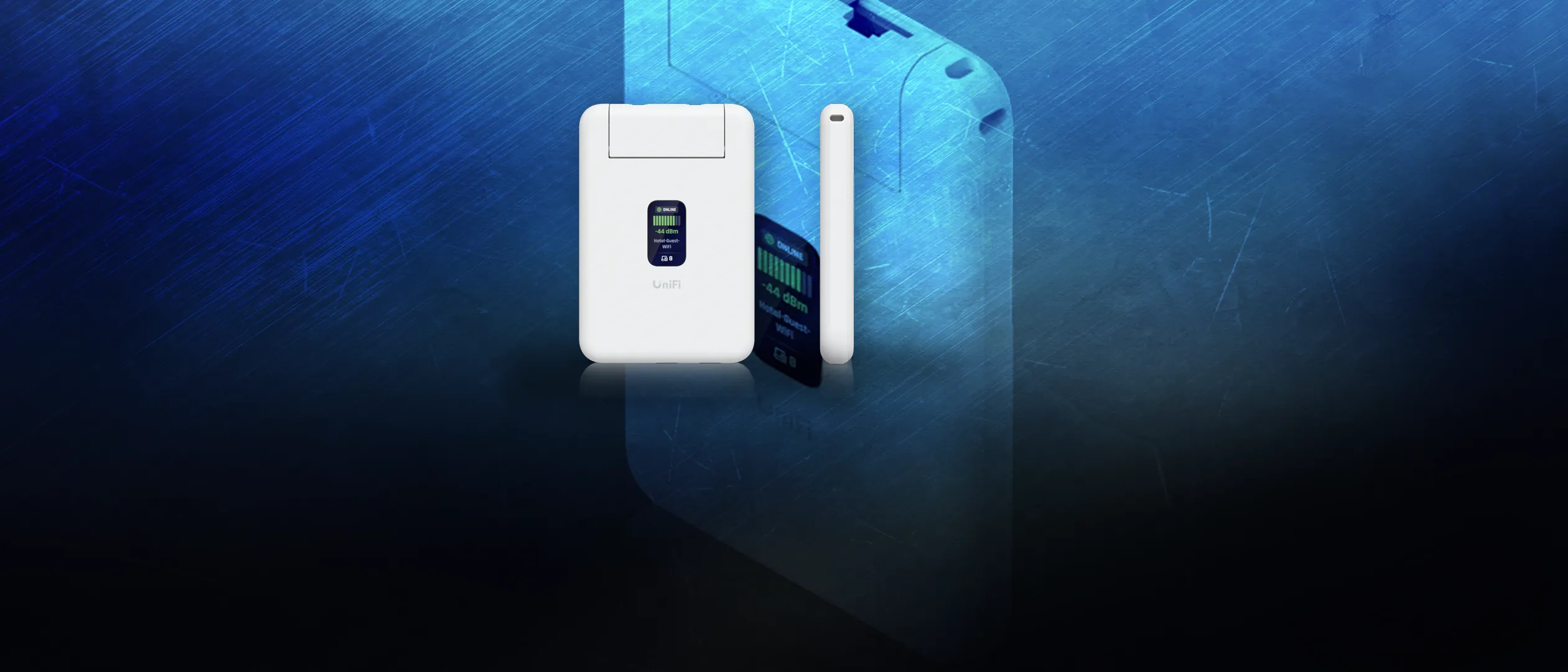
The UniFi Travel Router (UTR) is a compact, purpose-built travel router from Ubiquiti . It is designed to extend your existing UniFi network to wherever you happen to be - a hotel room, a customer site, a conference venue, or a holiday rental.
At 89 grams and roughly the size of a deck of cards, it fits in a laptop bag or jacket pocket without adding any noticeable bulk. The hardware is minimal and intentional:
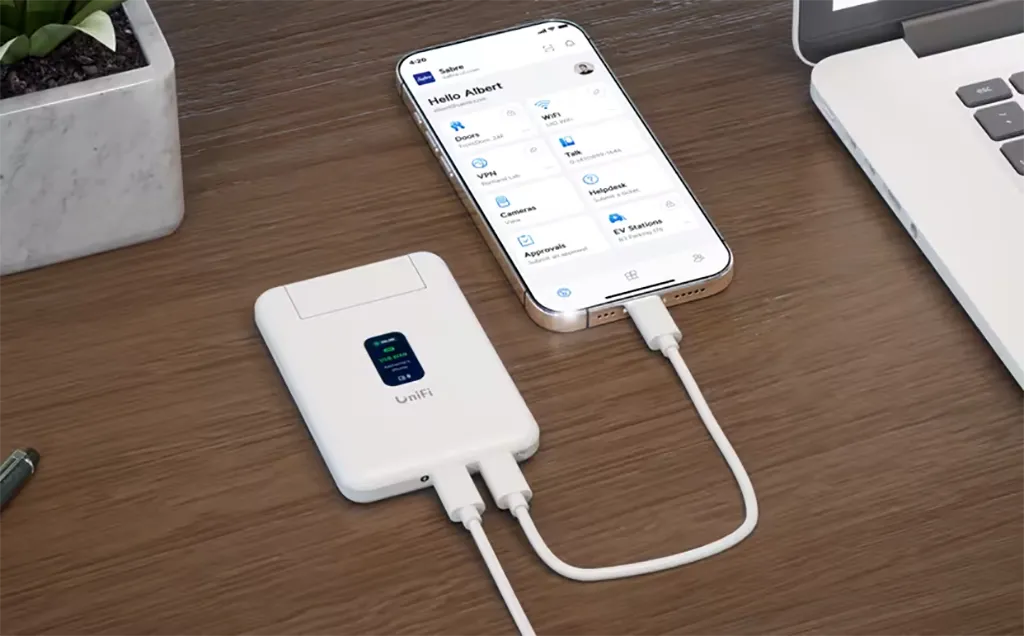
- Two USB-C ports: one for power (5V/2A, just 5W), one for smartphone tethering
- Two Gigabit Ethernet ports: one WAN, one LAN
- A 1.14-inch status display showing connectivity and client information
- Wi-Fi 5 (802.11ac), 2x2 MIMO on both 2.4 GHz and 5 GHz bands
There is no built-in battery, no external antennas, and no unnecessary complexity. It does one thing and does it well: it gives you a portable, secure network gateway.
Why Wi-Fi 5 is not a limitation
The UTR uses Wi-Fi 5 rather than Wi-Fi 6 or 7, and this is a deliberate design choice. When you are connecting to hotel Wi-Fi or a conference network, the bottleneck is never your travel router - it is the upstream bandwidth. Most hotel networks deliver 20-50 Mbps to individual rooms, well within Wi-Fi 5 capabilities. The lower-power silicon also means the UTR runs cool and draws minimal power, which matters when you are powering it from a portable battery pack.
How it works
The setup follows a straightforward four-step process: claim, uplink, bind, and broadcast.
- Claim - Power on the UTR and claim it through the UniFi mobile app
- Uplink - Choose how the UTR connects to the internet: Ethernet (fastest), Wi-Fi in WISP mode (most common), or USB tethering from your phone (fallback)
- Bind - Connect the UTR back to your home or office UniFi site using UniFi TelePort. This step is optional but is where the real value lies
- Broadcast - The UTR broadcasts your home SSID. Your devices recognize the familiar network and connect automatically
Once bound to your home site, the UTR creates an encrypted WireGuard tunnel back to your UniFi Cloud Gateway. Your devices do not need individual VPN clients - the encryption happens at the gateway level. Connect to the Wi-Fi, and you are automatically on your home network with the same routing rules, security policies, and access to local resources.

The claiming and binding is a one-time process. When you arrive at a new location, the only thing you need to do is update the uplink - select the hotel Wi-Fi, enter the password, handle any captive portal - and the UTR takes care of the rest. The entire process happens through the familiar UniFi app, the same app you already use to manage your home network. No separate tools, no web interfaces to learn, no command-line configuration. For anyone already running UniFi, it feels like second nature.
Why I chose the UniFi Travel Router
Choosing the UTR over the GL.iNet Slate 7 was not obvious. I have used GL.iNet travel routers for years. They are excellent devices - OpenWrt-based, feature-rich, and highly configurable. The latest GL.iNet Slate 7 (GL-BE3600) is genuinely impressive: Wi-Fi 7, dual 2.5G Ethernet ports, a touchscreen, and deep VPN integration with 30+ providers. I was close to ordering one when the UniFi Travel Router became available.
So why did I choose the UTR instead? It comes down to one thing: ecosystem integration. I have been a long-time fan of the UniFi platform and have used their networking and camera equipment in my home setup for years. When a travel router appeared that plugged directly into that ecosystem, the decision was straightforward.
With the GL.iNet, I had a capable travel router, but it was always a standalone device. I configured VPN clients manually, managed SSID settings separately, and had to reconfigure things when my home network changed. It worked, but it was friction.
With the UTR, the travel router is an extension of my home network. When I bind it to my UniFi site, it inherits my SSID, my security policies, and my network identity. There is no separate configuration to maintain. My devices connect to the same network name they use at home, and everything just works - including access to resources on my home network through the TelePort tunnel.
The GL.iNet Slate 7 wins on raw specifications. Wi-Fi 7, faster VPN throughput, more configuration options, and a touchscreen. But the UniFi Travel Router wins on experience. The setup is faster, the integration is deeper, and the day-to-day operation is simpler.
For someone who already runs UniFi at home, the UTR is the obvious choice. For someone who does not, the GL.iNet Slate 7 is a strong alternative with more standalone flexibility.
How I use it in practice
The UniFi Travel Router has become part of my standard travel kit, and I use it in several scenarios that go beyond basic Wi-Fi sharing.
Customer visits and demos
When visiting customers, I often need to demo solutions across multiple devices. Windows 365 Link, laptops, and presentation equipment all need reliable connectivity. The UTR still needs an uplink - either the customer’s guest Wi-Fi or my 5G modem - but once that single connection is established, all my devices sit behind my own network instead of being individually exposed to an unfamiliar environment.
This matters more than it might sound. Most guest and hotel Wi-Fi networks use client isolation - devices on the same network cannot see or communicate with each other. That is a problem when your phone needs to cast to a display, or when a streaming device needs to be discovered by other clients on the network. Behind the UTR, all your devices are on the same private network and can discover each other freely.
This is where the LAN port becomes critical. I connect a UniFi USW Flex Mini to the UTR and run a wider setup - a Windows 365 Link device for demo purposes, my laptop, and an ATEM Mini Pro for a more polished presentation setup. The Flex Mini is my preferred network switch on the go - it is compact, USB-C powered, and stays within the UniFi ecosystem. Everything connects through my own network, isolated from the customer environment, with consistent and predictable behavior.
Presentations and events
The same setup scales to larger events, but the real advantage is venue independence. No dependency on conference Wi-Fi for critical demo equipment means no surprises during a live session.
Another device that benefits from a consistent network is a Google Chromecast. I often use one to cast my phone screen during presentations, and since the Chromecast is paired to a specific SSID, it normally requires reconfiguration every time you move to a new network. With the UTR broadcasting my home network, the Chromecast connects automatically - plug it in, and it is ready to receive casts without any setup.
Family travel
On holidays, the UTR eliminates the most tedious part of arriving at a new hotel or rental: connecting every device to the Wi-Fi. I authenticate the UTR to the hotel network once - including any captive portal - and the entire family device estate is instantly online. Phones, tablets, laptops, and the Apple TV I travel with all connect to the familiar SSID without anyone needing to re-enter passwords or deal with captive portal screens on each device.
The Apple TV is a good example of where the UTR removes friction. The Apple TV does not handle captive portals and is notoriously difficult to connect to hotel Wi-Fi directly. With the UTR handling the uplink authentication, the Apple TV simply connects - either over Wi-Fi to the UTR’s SSID or via Ethernet through the LAN port - without needing to deal with the hotel network at all.
UniFi TelePort - bringing your network with you
UniFi TelePort is the feature that elevates the UTR from a simple travel router to a genuine network extension. When the UTR is bound to your home site, TelePort creates an encrypted site-to-site tunnel using WireGuard.
This means:
- All connected devices are automatically encrypted back to your home network - no per-device VPN clients needed.
- Devices that cannot run VPN software (like an Apple TV or IoT devices) still benefit from the tunnel.
- Your home firewall rules and routing policies travel with you.
- If you switch uplinks - say from hotel Wi-Fi to a wired connection - the tunnel reconnects automatically.
For me, this is the killer feature. I do not need to think about VPN configuration on individual devices. I connect to the UTR, and I am on my home network. It is that simple.
TelePort does require a UniFi Cloud Gateway at home (Dream Machine, Dream Router, Cloud Gateway Max, or similar). If you are already running UniFi infrastructure, this is a seamless addition. If you are not, it is worth considering whether the ecosystem investment makes sense for your needs.
The practical value of being on your home network
Being tunneled back to your home network is not just about encryption - it has real practical benefits that go beyond privacy.
If you use Microsoft Entra Conditional Access with trusted network locations, the TelePort tunnel means your traffic exits from your home IP address. When you access Azure admin portals, Microsoft 365 management tools, or other resources gated by location-based policies, you are connecting from a recognized network. No extra authentication steps, no blocked access because you are on an unfamiliar hotel network.
The same applies to local resources. If you have a NAS at home, a local file share, a Home Assistant setup, or other services on your home network, the TelePort tunnel gives you direct access as if you were sitting in your living room. No need to expose those services to the internet or configure separate remote access solutions.
There are situations where you do not need the tunnel - perhaps you just want raw internet speed without the overhead of routing through your home connection, or you need to access a geo-restricted service at your current location. In those cases, you can simply unbind the UTR from your home site through the UniFi app. The UTR continues to work as a standalone travel router, broadcasting your SSID and providing Wi-Fi, just without the tunnel back home. Rebinding when you need it again takes seconds.
Early impressions and quirks
I have been using the UniFi Travel Router for a few weeks now, and I am still learning its nuances. Overall, I am rather satisfied with the experience. The setup is fast, the TelePort integration works as advertised, and the device is genuinely portable.
There are a few small quirks I have noticed:
- Captive portal handling requires going through the UniFi mobile app, which adds a step compared to just opening a browser on a connected device. It works, but it is not as smooth as I would like.
- Single LAN port means you need an external switch for multi-device wired setups - not a dealbreaker, but something to plan for.
- No built-in battery - this is the one trade-off I genuinely wish Ubiquiti had solved differently. Having to carry a separate power source adds a step to every setup. I am currently on the hunt for a compact 5,000 mAh power bank that matches the UTR in size and style. Something that looks intentional rather than improvised. If I find one that works well and meets my visual standards, I will share the choice in a follow-up.
- Wi-Fi 5 only - this has a practical side effect worth knowing about. If you are using a mobile hotspot device like a Netgear Nighthawk M6 Pro with Wi-Fi 6 only mode enabled, the UTR simply will not see it. I spent some time troubleshooting this before realizing the mismatch. Once I enabled backward compatibility on the Nighthawk, it worked. I have also noticed that my phone hotspot sometimes does not appear in the UTR scan. When connecting manually, the TelePort tunnel occasionally fails to establish. I am still investigating this. On the positive side, USB tethering from the phone works reliably and has the added benefit of charging the phone at the same time.
- Single SSID only - the UTR can only broadcast one Wi-Fi network at a time. At home, I run separate SSIDs for personal and work devices, and not being able to replicate that on the road is a limitation. In practice, I mostly use the UTR with my work device for demos and presentations, so it is manageable. But when traveling with the family - where I want both networks available for all devices - not having both SSIDs exposed is genuinely annoying. I hope Ubiquiti adds multi-SSID support in a future firmware update.
- Mobile app only for configuration - there is no web UI, which may frustrate users who prefer browser-based management.
None of these are dealbreakers. They are trade-offs in a device that costs 79 USD and fits in your pocket.
The real test is still ahead. So far, I have used the UTR for customer visits and events, but the true proving ground will be the next family holiday - where I am responsible for critical infrastructure. When the entire family expects every device to be online the moment we walk into a hotel room, there is no room for troubleshooting. That is when I will know if the UTR truly delivers on its promise.
What you need to get started
If you are considering the UniFi Travel Router, here is what you need:
- UniFi Travel Router - the device itself
- UniFi Cloud Gateway at home - required for TelePort (Dream Machine, Dream Router 7, Cloud Gateway Max, or similar)
- A power source - not included in the box
- UniFi mobile app - for setup and management
For travel, I pack the UTR, a USB-C cable, a short Ethernet cable, and the Flex Mini. For powering the UTR and the Flex Mini, I use the Anker 100W charger - three ports, a smart display, and enough headroom to power both devices from a single charger. The whole kit adds minimal weight and fits easily in a laptop bag.
Final thoughts
After years of configuring VPN clients, managing separate SSIDs, and treating my travel router as a standalone device, having my home network simply follow me is a genuine quality-of-life improvement. Whether I am setting up a multi-device demo at a customer site, running a presentation at an event, or just getting the family online at a holiday rental - the experience is the same: power on, connect, done.
The UniFi Travel Router is not perfect, but it is exactly what I needed.
–Jesper
Header image attribution: Image created with help from Microsoft Copilot