
What if the most impactful thing you could do for your coding workflow was not writing code at all - but teaching your AI assistant how you think?
Most people start using GitHub Copilot the same way: open a file, type a comment, accept a suggestion. It works. But after a while, you notice the output does not quite match your standards. Variable names are wrong. The script structure is off. Terminology is inconsistent. You spend time correcting GitHub Copilot’s output instead of building on it.
Better prompts help - they always do. I explored that in my posts on Vibe Coding and using AI as a superpower. But prompts are per-conversation. The conventions you care about do not change between conversations. That is where instruction files come in - Markdown files that teach GitHub Copilot your conventions, your preferences, and your way of working. Once these files exist, every interaction starts from a shared understanding. No more repeating yourself. No more correcting the same mistakes. And with GitHub moving toward usage-based billing, fewer corrections and follow-up prompts could mean lower costs too.
I have been building and refining instruction files across multiple repositories for months now, and the impact has been significant. What started as a single copilot-instructions.md file with a few bullet points has grown into a modular system of topic-specific instruction files that shape everything from PowerShell script structure to blog post formatting. This post shares what I have learned along the way - how to get started, how instruction files evolve, and why I consider them deeply personal.
What is GitHub Copilot?
GitHub Copilot is an AI-powered coding assistant built into Visual Studio Code. It provides code completions as you type, a conversational chat interface, inline editing capabilities, and specialized agents for tasks like fixing errors or working with the terminal. It is developed by GitHub and powered by large language models from multiple providers. It is available as a subscription - free, pro, or through an organization.
However, GitHub Copilot is not just a code generator. It is a context-aware assistant that can read your project files, understand your repository structure, and follow project-specific rules. That last part - following rules - is where instruction files come in. And that capability is what made me rethink how I set up every repository I work in.
What you need to get started
Before you can use instruction files, you need a working GitHub Copilot setup. The prerequisites are straightforward:
- A GitHub account with access to GitHub Copilot (the Free plan works, though it has monthly limits on completions and chat requests)
- Visual Studio Code installed and up to date (GitHub Copilot is built in - no separate extension needed)
- Signed in to your GitHub account in Visual Studio Code
- Git installed on your machine - I highly recommend having Git available even if you are not using source control yet, as Visual Studio Code and many GitHub Copilot workflows depend on it
To get started, hover over the Copilot icon in the Status Bar and select Use AI Features. If you do not have a paid subscription, Visual Studio Code signs you up for the Free plan automatically.
Note
At the time of writing, GitHub is transitioning to a usage-based billing model. Upgrades to Pro and Pro+ plans are temporarily paused. The Free plan remains available, but if you need a paid plan, check the GitHub Copilot plans page for the latest status.What instruction files are
Instruction files are plain Markdown files that provide GitHub Copilot with project-specific context. They define your conventions, coding standards, terminology, and preferences so that every response GitHub Copilot generates is already aligned with how you work.
There are two types of instruction files, and they work together.
The copilot-instructions.md file
The copilot-instructions.md file lives at .github/copilot-instructions.md in your repository. GitHub Copilot reads it automatically whenever it processes a request in that workspace. This is the entry point - the place where you define what makes your project unique. Common content includes project structure, file standards, review checklists, and any rules specific to the repository.
If you are new to repositories and folder structures, my Hello World repository is a good starting point - it demonstrates the full layout and includes a companion wiki that walks through the setup step by step.
The instructions folder
For repositories with more conventions than a single file can comfortably hold, you can create a .github/instructions/ folder with topic-specific files. Each file uses the .instructions.md extension and can include YAML frontmatter with an applyTo property that controls which file types the instructions apply to.
For example, a PowerShell instruction file might include:
---
name: PowerShell coding standards
applyTo: "**/*.ps1, **/*.psm1"
---
Example: YAML frontmatter with applyTo scoping for PowerShell files
This means the PowerShell conventions are only loaded when you are editing PowerShell files - not when you are working on Markdown documentation or JSON configuration. A separate markdown.instructions.md file scoped to "**/*.md" handles Markdown conventions. GitHub Copilot picks up the right instructions for the right context automatically.
Not every instruction file should be scoped narrowly. Writing style and terminology conventions apply across Markdown, code comments, and commit messages - so scope them to all files:
---
name: Writing style guidelines
applyTo: "**"
---
Example: YAML frontmatter with applyTo scoping for all files
The folder structure could look like this:
 📂 your-repository/
  └─ 📂 .github/
      ├─ 📄 copilot-instructions.md
      └─ 📂 instructions/
           ├─ 📄 markdown.instructions.md
           ├─ 📄 powershell.instructions.md
           ├─ 📄 terminology.instructions.md
           └─ 📄 writing-style.instructions.md
Example: Instruction files folder structure
Visual Studio Code auto-detects both the copilot-instructions.md file and any .instructions.md files in the instructions/ folder - no settings.json configuration required.
Getting started - your first instruction file
The best way to start is not with a blank file and a blinking cursor. Start with the project-level copilot-instructions.md file, then expand into modular instruction files as your conventions grow.
Task 1 - Create your copilot-instructions.md
Every repository that uses GitHub Copilot should have this file. It is the foundation.
In Visual Studio Code, create the folder and file:
 📂 your-repository/
  └─ 📂 .github/
      └─ 📄 copilot-instructions.md
Example: Creating the copilot-instructions.md file
Open Copilot Chat (
Ctrl+Alt+I) and ask for help drafting the initial content:Analyze this entire workspace and generate a complete .github/copilot-instructions.md file. Identify the purpose, conventions, and patterns used in this repository. Include sections for coding conventions, project structure, and documentation standards.Example: Prompt to generate a copilot-instructions.md file
Tip
This prompt works best in a repository that already has code or documentation for GitHub Copilot to analyze. In a new or empty repository, start with the example structure below and add rules manually as the project takes shape.Review the generated draft carefully - this file shapes every future GitHub Copilot interaction in your repository
Start simple. A good first version covers coding conventions, script headers, and documentation standards in short bullet lists. Here is an example structure:
# Copilot Instructions

## Coding conventions

- Use approved PowerShell verbs for function names (e.g., `Get-`, `Set-`, `New-`)
- Use `Get-CimInstance` instead of `Get-WmiObject`
- Include comment-based help on all functions
- Use PascalCase for function names

## Script header

- All scripts must include a description comment
- All scripts must include an elevation requirement comment

## Documentation

- Use Markdown for all documentation
- Use sentence case for headings
Example: A minimal copilot-instructions.md file
Commit the file to your repository so it is available on every device where you clone the project
Once the file exists, GitHub Copilot reads it automatically - no additional configuration needed. From this point on, every response in this workspace is informed by the rules you defined.
Task 2 - Generate instruction files from your existing work
Once you have a working copilot-instructions.md, the next step is letting GitHub Copilot analyze your existing code and documentation to generate topic-specific instruction files. This approach produces instructions that feel natural because they describe how you already work - not how someone else thinks you should.
Open Copilot Chat and try prompts like these:
Writing style:
Analyze the Markdown files in this repository and create a writing-style.instructions.md
file that captures the tone, formatting patterns, punctuation rules, and heading conventions
I already use.
Example: Prompt to generate a writing-style instruction file
PowerShell conventions:
Review the PowerShell scripts in this repository and create a powershell.instructions.md
file that documents the naming conventions, script structure, error handling patterns, and
security practices I follow.
Example: Prompt to generate a PowerShell instruction file
Terminology:
Scan this repository for product names and technical terms, then create a
terminology.instructions.md file that defines the correct spelling and capitalization
for each term.
Example: Prompt to generate a terminology instruction file
Save the generated files in the .github/instructions/ folder with the .instructions.md extension. Add YAML frontmatter with an applyTo property to scope each file to the relevant file types.
Tip
When prompting GitHub Copilot to generate an instruction file, add to the prompt, whether the file is for personal use or for a shared project. A personal instruction file - like one for your LinkedIn posting style or blog writing tone - should reflect your individual voice and preferences.
A project instruction file - like one for PowerShell conventions or commit message formats - should be written for a team, with rules that apply regardless of who is contributing. That distinction shapes the language, scope, and level of opinion GitHub Copilot puts into the result.
Task 3 - Feed external references for richer results
You can also feed GitHub Copilot external resources - blog posts, style guides, or documentation - to help it generate richer and more opinionated instruction files. Here is an example:
Review https://dotjesper.com/2025/how-to-name-your-powershell-scripts-and-functions/ and compare
the naming conventions described there with my existing powershell.instructions.md file.
Suggest any new rules or refinements that should be added.
Example: Prompt using an external reference to enrich instruction files
Combining your own repository patterns with external sources gives GitHub Copilot a stronger foundation and produces more complete results from the start.
Something I did not expect: instruction files changed how I approach learning. I used to watch a LinkedIn Learning course on growing a professional presence or follow a Microsoft Learn module on building PowerShell modules and take notes for myself. Now I watch the same content with a different question in mind - what from this can I turn into a rule that GitHub Copilot should follow? A training session on writing effective LinkedIn posts becomes a source for refining my content strategy instructions. A module on PowerShell best practices becomes input for tightening my coding conventions. The transcription alone can be incredibly useful when fed into a prompt.
The shift is subtle but real.
I find myself more engaged with training material because the outcome is not just “I learned something” - it is “I captured something I can reuse in every future interaction.”
The instruction files become a living record of what I have learned, not just what I already knew.
How instruction files evolve
Here is the uncomfortable truth about instruction files: the first version is never the final version. And it should not be. Instruction files are living documents. They grow, shrink, split, and merge as your understanding of your own conventions deepens. In my experience, the evolution follows a predictable pattern.
Phase 1 - The basics
You start with a single copilot-instructions.md file containing a handful of rules. Maybe it says “use PascalCase for function names” and “include comment-based help on all functions.” It is short, simple, and immediately useful.
Phase 2 - The sprawl
As you work with GitHub Copilot more, you notice gaps. It uses the wrong terminology. It formats tables differently than you prefer. It generates blog post introductions that do not match your style. You keep adding rules to the single file until it becomes unwieldy. Then you reorganize, simplify, and start adding again.
Phase 3 - Modularization
You realize a single file trying to cover PowerShell conventions, writing style, Markdown formatting, terminology, and GitHub workflows is too much. You move topic-specific rules into dedicated files in the .github/instructions/ folder, each scoped with applyTo to the relevant file types. The copilot-instructions.md file becomes a project-specific entry point rather than a catch-all.
Phase 4 - Cross-repository reuse
You discover that your writing style rules apply to every repository you work in - not just one. You start designing instruction files to be generic and reusable, keeping project-specific details in copilot-instructions.md and portable conventions in the instruction files. Some people store shared files in a central location like Microsoft OneDrive and reference them in their Visual Studio Code settings globally.
How to share instruction files across repositories using Microsoft OneDrive
Click to readIf you keep your reusable instruction files in Microsoft OneDrive (or another synced folder), you can tell Visual Studio Code to load them automatically in every workspace. Add the following to your user settings.json:
{
  "github.copilot.chat.codeGeneration.instructions": [
    { "file": "C:/Users/YourName/OneDrive/copilot-instructions/writing-style.instructions.md" },
    { "file": "C:/Users/YourName/OneDrive/copilot-instructions/terminology.instructions.md" }
  ]
}
Example: Referencing shared instruction files in settings.json
Each file path points to an instruction file stored outside the repository. Visual Studio Code loads these alongside any repo-level instruction files, so you get both your personal conventions and the project-specific rules in every session.
A few things to keep in mind:
- Use forward slashes in the path, even on Windows
- These files are loaded in addition to any
.github/copilot-instructions.mdand.github/instructions/*.instructions.mdfiles in the current workspace - If a personal instruction conflicts with a project-level instruction, the behavior can be unpredictable - keep personal files focused on topics that project files do not cover
For a more detailed walkthrough, see Part 7 Copilot Configuration in the Hello World wiki.
Phase 5 - Continuous refinement
The files are never done. You add a rule when you notice GitHub Copilot making the same mistake twice. You remove a rule when it consistently produces poor output. You rewrite a section when you find a clearer way to express a convention. The instruction files become a reflection of your professional judgment, refined through daily use.
What to put in instruction files
What you put in your instruction files depends on what you do. Here are the categories I have built and currently use across my repositories:
- Coding conventions - Naming patterns, script structure, error handling, and preferred cmdlets or modules
- Writing style - Tone, voice, prose conventions, heading rules, and punctuation patterns
- Terminology - Approved product names and correct capitalization (for example, always use “Microsoft Intune” never “Intune” alone, always use “Visual Studio Code” never “VS Code” or “Code”)
- Markdown formatting - Heading hierarchy, list punctuation, code block conventions, table formatting, and folder structure diagrams
- GitHub workflows - Commit message format, branch naming, versioning, and release note templates
- Content formatting - Blog post structure, LinkedIn posting patterns, session abstract guidelines
Not every repository needs all of these. Start with the category that causes the most friction in your daily work and expand from there.
To give you a sense of what refined rules look like in practice, here are a few examples from my writing style instruction file:
### Contractions

Never use contractions (e.g., "isn't", "I'd", "don't", "it's"). Always write the
full form ("is not", "I would", "do not", "it is").

### Sentence case

Headings and titles should use sentence case - capitalize only the first word and
proper nouns, not title case.

### Heading context

Writing after headings should follow these principles:

- The first sentence after a heading must restate or incorporate the heading's topic
  so the paragraph makes sense on its own
- Never follow a heading directly with a bullet list, table, code block, or similar
  structured element, always include a short introductory sentence before it
- Never follow a heading directly with another heading - every heading must have at
  least one sentence of body text before the next heading appears
Example: Writing style rules from a mature instruction file
These rules started as vague ideas - “make headings consistent” and “write clearly” - and became specific, actionable instructions through months of refinement. The difference matters. A rule that says “use consistent headings” gives GitHub Copilot nothing to work with. A rule that says “use sentence case, never title case” produces correct output every time.
The vocabulary you did not know you needed
Building instruction files taught me something unexpected: I did not have the vocabulary to describe my own conventions precisely. I knew what I wanted - “headings should look like this” or “variable names should follow that pattern” - but I could not name the conventions. I did not even know these patterns had names. Once I learned the proper terms, writing instructions became dramatically easier. Instead of describing a pattern in a full sentence, I could reference it by name and GitHub Copilot would know exactly what I meant.
Here are the naming and casing conventions I learned along the way:
| Convention | Example | Common use |
|---|---|---|
| camelCase | getDeviceInfo | JavaScript variables, JSON property names |
| dot.case | get.device.info | Configuration keys, Java packages |
| flat-case | getdeviceinfo | Package names, namespaces |
| kebab-case | get-device-info | Git branch names, URL slugs, CSS classes |
| PascalCase | GetDeviceInfo | PowerShell function names, C# classes |
| SCREAMING_SNAKE_CASE | MAX_RETRY_COUNT | Constants, environment variables |
| Sentence case | Get device info | Headings, button labels |
| snake_case | get_device_info | Python variables, database column names |
| Title case | Get Device Info | Book titles, formal headings |
| Train case | Get-Device-Info | HTTP headers, PowerShell cmdlets |
Before I knew these terms, my instruction files contained rules like “capitalize the first letter of each word in function names.” After I learned them, that same rule became “use PascalCase for function names” - shorter, clearer, and unambiguous. The precision is not just for me. GitHub Copilot responds more consistently to established convention names than to descriptions of what those conventions look like.
This might seem like a small thing, but it compounds. Every instruction file I write now uses the correct terminology, which makes the rules easier to maintain, easier to review, and easier for GitHub Copilot to follow.
Not just for new content
Most people think of instruction files as a tool for generating new code or drafting new content. That is where they start - but it is not where they stop. Instruction files are equally powerful when reviewing existing work.
When you ask GitHub Copilot to review a blog post, a script, or a README, it applies the same conventions from your instruction files to the content it is reading. Terminology rules catch inconsistent product names. Writing style conventions flag contractions you missed. Markdown formatting rules identify heading hierarchy issues or missing code block captions. The instruction files turn GitHub Copilot into a reviewer that knows your standards as well as you do - sometimes better, because it does not get tired or skip sections.
This is where I have seen the most practical value. I can hand GitHub Copilot a 400-line blog post and ask it to review the text against my writing style and terminology conventions. Within seconds, it finds the one place I wrote “Intune” instead of “Microsoft Intune.” It catches the paragraph where I accidentally used a contraction and the heading that slipped into title case. These are the kinds of mistakes that are easy to miss when you have been staring at your own writing for hours.
The same applies to code. A PowerShell script written six months ago might not follow conventions you have since added to your instruction files. Asking GitHub Copilot to review it against your current standards surfaces those gaps without you having to remember every rule yourself.
The shift in thinking is subtle but important: instruction files do not just shape what GitHub Copilot creates - they shape what it catches.
Validating your instructions
Writing instructions is one thing. Knowing they work is another. Validation is an essential part of the process and takes several forms.
Test through use. The most practical validation is simply working with GitHub Copilot and observing whether it follows the rules. Ask it to generate a script, write a blog post section, or draft a commit message. If the output matches your expectations, the instruction is working. If it does not, revise the wording.
Ask GitHub Copilot to review itself. You can prompt GitHub Copilot to check its own instruction files for clarity and completeness:
Please help me review my copilot-instructions.md file. Are there any sections that
could be clearer or more specific? What common PowerShell conventions am I missing?
Example: Prompt to review your instruction files
Watch for contradictions. As instruction files grow, rules can conflict. A writing style file might say “use bold for emphasis” while a Markdown file says “use italics for emphasis.” GitHub Copilot will try to follow both, producing inconsistent output. Periodic reviews catch these conflicts early:
Review all my instruction files in .github/instructions/ and identify any rules that
contradict each other. Check for conflicts in formatting, naming conventions, tone,
and terminology.
Example: Prompt to check for contradictions across instruction files
Keep instructions concise. Long, complex instruction files can confuse GitHub Copilot just as they confuse people. If a rule needs a paragraph of explanation, it might be too nuanced for an instruction file - consider simplifying it or splitting it into multiple clear rules.
Using Chat Customizations Evaluations
Manual validation works, but there is a better option. The Chat Customizations Evaluations extension for Visual Studio Code provides automated, LLM-powered analysis of your instruction files - directly in the editor.
The extension analyzes .instructions.md files (along with .prompt.md, .agent.md, and SKILL.md files) and reports diagnostics in the standard Problems panel. It uses GitHub Copilot as its analysis engine, so no additional API keys or configuration is needed.
What it checks for:
- Contradiction detection - Finds logical, behavioral, and format conflicts between rules in your instruction files
- Semantic ambiguity - Identifies vague or ambiguous instructions and suggests clearer rewrites
- Persona consistency - Detects conflicting personality traits or tone drift across your instructions
- Cognitive load assessment - Warns when instructions are overly complex with too many nested conditions
- Semantic coverage - Identifies gaps in your instructions where important scenarios are not addressed
- Composition conflict analysis - Detects conflicts between a file and other files it references through Markdown links
To use it, open any .instructions.md file and either click the Analyse beaker icon in the editor or run Chat Customizations Evaluations: Analyze Prompt from the Command Palette. The diagnostics appear in the Problems panel with precise line and column locations - the same place you would see linting errors in code.
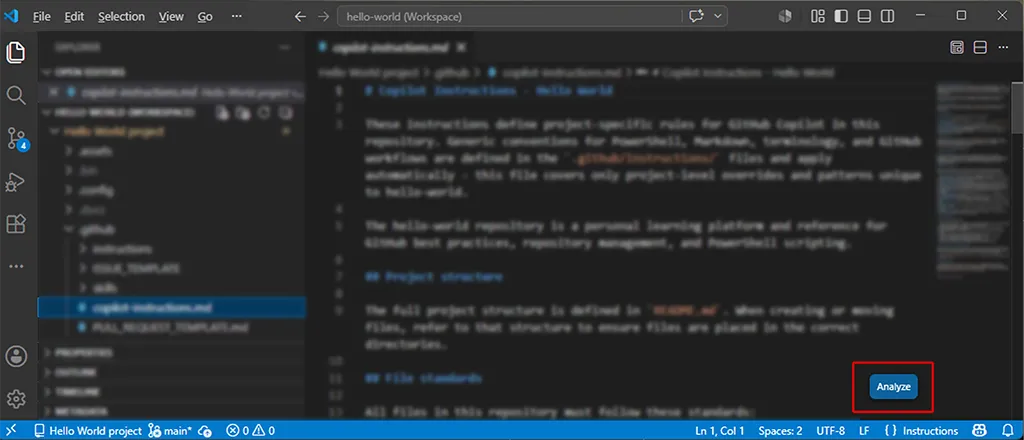
What makes this extension particularly valuable is the Fix Diagnostics capability. When the analyzer flags an issue, you can click the fix button and GitHub Copilot rewrites the affected section to resolve the diagnostic - preserving the overall structure, tone, and intent of your instruction file. It is essentially a linter and auto-fixer for your AI instructions.
I have found this extension indispensable during the refinement phase. As instruction files grow and evolve, contradictions and ambiguities creep in without you noticing. A rule added in month three might conflict with something written in month one. The extension catches these issues before they produce inconsistent GitHub Copilot output - which is far better than discovering the problem through a confusing AI response and tracing it back to a conflicting instruction.
Sharing instruction files - and choosing not to
Instruction files live in your project folder, and that is one of their greatest strengths. When you commit them to a repository, every team member working in that codebase gets the same conventions applied automatically. GitHub Copilot generates consistent output across the team - same naming patterns, same script structure, same terminology. No one needs to memorize a style guide or remember to apply it manually. The instruction files do that work for everyone.
I do share instruction files at the project level. Project-specific conventions - coding standards, commit message formats, documentation rules - belong in the repository. They are part of the codebase, and they make collaboration smoother.
However, not all instruction files are project conventions. Some are deeply personal. My writing style rules, my blog post structure, my LinkedIn content strategy - these reflect how I think and how I communicate. They encode my professional judgment, not universal truths.
If you explore my Hello World repository on GitHub, you will notice something deliberate: the .github/instructions/ folder exists, but it is empty. The personal instruction files are excluded from version control via .gitignore. This is intentional.
The .gitignore pattern I use excludes the customization files while keeping the folder structure and any README.md files tracked:
.github/instructions/*.instructions.md
.github/prompts/*
.github/skills/*
Example: Excluding instruction files from version control
This approach means the folders show up when someone clones the repository - they can see where instruction files belong - but the personal content stays private. I also include a README.md inside the .github/instructions/ folder to explain its purpose to anyone working in the repository locally.
Mixing personal and corporate instructions
Managing personal and corporate instruction files gets tricky because they live in the same .github/instructions/ folder. In a corporate repository, the team might commit shared instruction files for coding standards, commit messages, and documentation rules. Your personal files for writing style or content strategy sit right next to them - same folder, same extension, same format. Without a clear separation strategy, it is easy to accidentally commit a personal file or lose track of which files belong to the project and which belong to you.
The .gitignore approach above handles the simplest case: all instruction files are personal, so all are excluded. But in a corporate repository where some files should be committed and others should not, you need a different approach.
The cleanest solution is to keep personal instruction files outside the repository entirely. Store them in a synced folder like Microsoft OneDrive and reference them in your Visual Studio Code user settings.json - as described in the Microsoft OneDrive section earlier in this post. This way, corporate instruction files live in the repository where they belong, and your personal files live outside it where they cannot accidentally be committed or conflict with the team’s conventions.
If you prefer keeping everything in the repository folder, use a naming convention to distinguish personal from project files. For example, prefix personal files with your initials or a marker like _personal-. Then add those specific patterns to .gitignore:
.github/instructions/_personal-*.instructions.mdExample: Excluding personal files while keeping corporate files tracked
The corporate files remain tracked and shared. Your personal files stay local. The risk with this approach is that it relies on discipline - one forgotten prefix and a personal file ends up in a pull request.
In my experience, keeping personal files outside the repository is the more reliable pattern. It eliminates the risk entirely and makes the separation structural rather than conventional.
What would make this easier is native support for separating organizational and personal instruction files - something like .github/instructions/org/ for tracked team conventions and .github/instructions/personal/ for local-only files that Visual Studio Code picks up but Git ignores by default. Today, everything lives in the same flat folder, and the separation is up to you. Hopefully that changes as the tooling matures.
Sharing personal instruction files would create a problem. Someone might adopt my terminology rules without understanding the reasoning behind them. Someone might follow my writing style conventions when their audience and context are entirely different. Someone might use my PowerShell conventions and wonder why they conflict with their organization’s standards.
The value of personal instruction files comes from the process of creating them
The value of personal instruction files comes from the process of creating them - from examining your own work, identifying your patterns, and articulating your conventions in a way that an AI can follow. That process builds self-awareness about your own standards. Copying someone else’s instruction files skips the most valuable part.
That said, I do share the structure. The Hello World repository shows where instruction files go, what they are called, how they relate to copilot-instructions.md, and how the applyTo frontmatter works. The README includes example prompts for generating your own instruction files from your existing work. The companion wiki - particularly Part 7 Copilot Configuration - walks through the entire setup process step by step. The framework is shared. The content is yours to create.
I also share the topics I cover. My instruction files span PowerShell conventions, writing style, Markdown formatting, and terminology. They also cover GitHub workflows, LinkedIn content strategy, session abstract guidelines, and blog post structure. Knowing what categories exist is useful. Knowing my specific rules for each one is not - because your rules should reflect your work, not mine.
Is this the right approach?
Sharing project conventions while keeping personal style private works well in practice - but it is not without trade-offs.
The case for sharing project-level instruction files is clear. When a team agrees on conventions and commits them to the repository, everyone benefits. GitHub Copilot becomes a consistency engine - not just for the individual, but for the whole team. That is powerful.
The case against sharing personal instruction files is equally clear. Instruction files that work for one person in one context can be counterproductive for another. My rule that says “always use Microsoft Intune, never Intune alone” makes sense for blog posts targeting a broad audience - but it would be noisy and unnecessary in an internal team repository where everyone knows what “Intune” means. My writing style conventions reflect my voice and my audience - adopting them wholesale would make someone else’s writing feel artificial.
The better pattern is what the Hello World repository demonstrates: share the scaffolding, not the personal content. Show people where the files go, what the structure looks like, and how to generate their own. Then let GitHub Copilot do what it does best - analyze existing work and produce conventions that fit the person who created them.
If you want to explore the full setup in practice, the Hello World wiki’s Part 7 Copilot Configuration goes deeper into topics this post introduces - including sharing instructions across repositories via Microsoft OneDrive, combining global and repo-level instructions, and the newer customization primitives like prompt files, agent files, and skill files.
Try it yourself
Here is a practical exercise you can do with any existing repository:
- Open your repository in Visual Studio Code
- Create
.github/copilot-instructions.mdusing the prompt from Task 1 above - Ask GitHub Copilot to generate a script or documentation snippet, and compare the output against your usual standards
- Add or adjust one rule based on what you see - perhaps a naming convention it missed or a formatting pattern it got wrong
- Ask GitHub Copilot again and observe the difference
- When you have 10 or more rules in the single file, create the
.github/instructions/folder and split them into topic-specific files withapplyToscoping - Install the Chat Customizations Evaluations extension and run an analysis on each instruction file to catch contradictions or ambiguities
That cycle - generate → compare → refine → split → validate - is the core workflow. Everything else builds on it.
Final thoughts
Instruction files changed how I work with GitHub Copilot. Before them, every conversation started from zero - I repeated the same corrections, explained the same conventions, and fixed the same terminology mistakes. After them, GitHub Copilot already knows my standards. The conversation starts from a shared understanding, and the output is closer to what I need from the first response.
With GitHub transitioning to usage-based billing, that efficiency gain may carry a practical benefit beyond quality. Fewer follow-up prompts, fewer corrections, fewer regenerations - if instruction files help you get closer to the right answer on the first try, the cost of each interaction should go down. I cannot prove that yet, but the logic feels sound.
But the real value is not the files themselves. It is the process of creating them. Writing an instruction file forces you to articulate conventions you have never written down - patterns that live in your head as instinct rather than explicit rules. That exercise clarifies your own thinking and makes you a more deliberate professional, whether or not you use AI tools.
Instruction files are not a destination - they are a journey.
Start with one file. Add one rule that addresses your biggest friction point with GitHub Copilot. Use it for a week. Refine it. Add another rule. Let the system grow organically from your daily work. Six months from now, you will have a set of instruction files that reflects exactly how you think about your craft - and an AI assistant that already knows.
And then you will review the whole thing, rewrite half of it, and realize how much your thinking has evolved since you started. But that is the point. The difference is that now you have the skill to keep them in sync with who you are becoming.
–Jesper
Header image attribution: Image created with help from Adobe Firefly