Looking for a way to present legal disclaimers and compliance requirements to users before they enroll devices or access protected resources?
As organizations adopt modern device management and Zero Trust approaches, one question frequently arises: how can we maintain legal and compliance requirements during the enrollment process? This is where terms and conditions policies come into play.
In this post, I will explore how Microsoft Intune terms and conditions policies work, compare them with Microsoft Entra Conditional Access terms of use, and discuss when and why you should consider using both as part of your device enrollment strategy.
What are Microsoft Intune Terms and Conditions?
Microsoft Intune terms and conditions policies provide a way to present relevant disclaimers for legal or compliance requirements to device users. A terms and conditions policy requires targeted users to accept your terms in the Company Portal before they can enroll devices or access protected resources.
Image viewer

This feature is particularly valuable for organizations that need to:
- Communicate acceptable use policies: Inform users about what is and is not acceptable behavior when using corporate devices and resources.
- Establish legal agreements: Create a documented agreement between the organization and the user.
- Meet regulatory requirements: Satisfy industry or regional compliance requirements that mandate user acknowledgment.
- Set expectations: Clarify the organization’s right to manage, monitor, and secure enrolled devices.
Creating Terms and Conditions in Microsoft Intune
Setting up a terms and conditions policy in Microsoft Intune is straightforward:
- Sign in to the Microsoft Intune admin center .
- Navigate to Tenant administration > End user experiences > Terms and conditions.
- Select Create to start a new policy.
- On the Basics page, enter:
- Name: A descriptive name for the policy (not visible to end users).
- Description: Optional description of the purpose or intended use.
- On the Terms page, enter:
- Title: The display name users will see in Company Portal.
- Terms and conditions: The full text that users must accept or reject.
- Summary of terms: A brief, high-level explanation of what the user is agreeing to.
- On the Assignments page, target the policy to:
- All users: Apply to everyone in your organization.
- Select groups: Target specific user groups.
- Review and Create the policy.
Tip
When crafting your terms and conditions, consider including information about device monitoring capabilities, data collection practices, acceptable use policies, and the organization’s rights regarding the enrolled device.Formatting guidelines
Before crafting your terms and conditions, keep these limitations and best practices in mind:
- Plain text only: Microsoft Intune terms and conditions do not support markdown, HTML, or rich text formatting. Bold, italics, bullet points, and hyperlinks will not render - they will display as raw characters.
- Keep it concise: Aim for 500-1000 characters for the summary of terms and 2000-4000 characters for the full terms. Users are more likely to read and understand shorter, focused content.
- Use simple structure: Use line breaks, CAPS, dashes, or numbered sections (1., 2., 3.) for visual separation since formatting is not available.
- Mobile-friendly: Many users will view terms on mobile devices. Short paragraphs and clear language improve readability.
- Focus on essentials: Cover the key points - device management rights, monitoring, data handling, and remote wipe capabilities. You can reference external policies for additional details.
Terms and Conditions example
To help you get started, here are example texts for the Title, Terms and conditions, and Summary of terms fields. These examples are designed to cover common scenarios in enterprise device management.
| Field | Example |
|---|---|
| Title | Device Management Terms and Conditions |
| Terms and conditions | DEVICE MANAGEMENT TERMS AND CONDITIONS Effective: [Month Year]. By enrolling this device, you acknowledge and agree to the following: 1. DEVICE MANAGEMENT - Your organization will manage this device remotely, including deploying software, enforcing security policies, and performing remote actions such as lock or wipe. 2. DATA COLLECTION - Your organization may collect device information including device name, serial number, OS version, installed apps, and compliance status to ensure security. 3. ACCEPTABLE USE - Use this device in accordance with organization policies. Do not install unauthorized software or use the device for illegal activities. 4. REMOTE WIPE - Your organization may remotely wipe this device if lost, stolen, compromised, or upon your departure from the organization. Personal data may be lost. 5. POLICY UPDATES - These terms may be updated. You will be notified of significant changes and may need to accept updated terms. By accepting, you confirm you have read and agree to these conditions. |
| Summary of terms | By enrolling your device, you agree to allow your organization to manage, monitor, and secure this device. Your organization may collect device information, enforce security policies, and remotely wipe the device if necessary. Please review the complete Terms before accepting. |
Tip
Notice the effective date included in the example above (e.g., “Effective: January 2025”). While Intune tracks version numbers, a visible date helps users understand when terms were last updated and is a common legal best practice. Remember to update this date when you revise the terms and require re-acceptance.Disclaimer
I am not a legal professional, and the examples provided above are for inspiration and educational purposes only. Your organization’s legal, HR, and compliance teams should review and approve any terms and conditions before deployment. Requirements vary by industry, region, and organization.Feel free to adapt these examples to match your organization’s specific policies and legal requirements. Consider referencing your existing acceptable use policy or employee handbook rather than duplicating all content in the terms.
How users experience terms and conditions
Once you deploy a terms and conditions policy, targeted users encounter it during device enrollment and in the Company Portal app. The experience is designed to be clear and unambiguous:
- Users see the title and summary of terms prominently displayed.
- Tapping Read Terms expands the full terms and conditions text.
- Users must explicitly Decline or Accept the terms.
- Declining prevents enrollment or access to protected resources.
- Once accepted, users do not see the terms again unless you update them and require re-acceptance.
This user experience ensures that acceptance is an active, conscious decision - not something that can be accidentally bypassed.
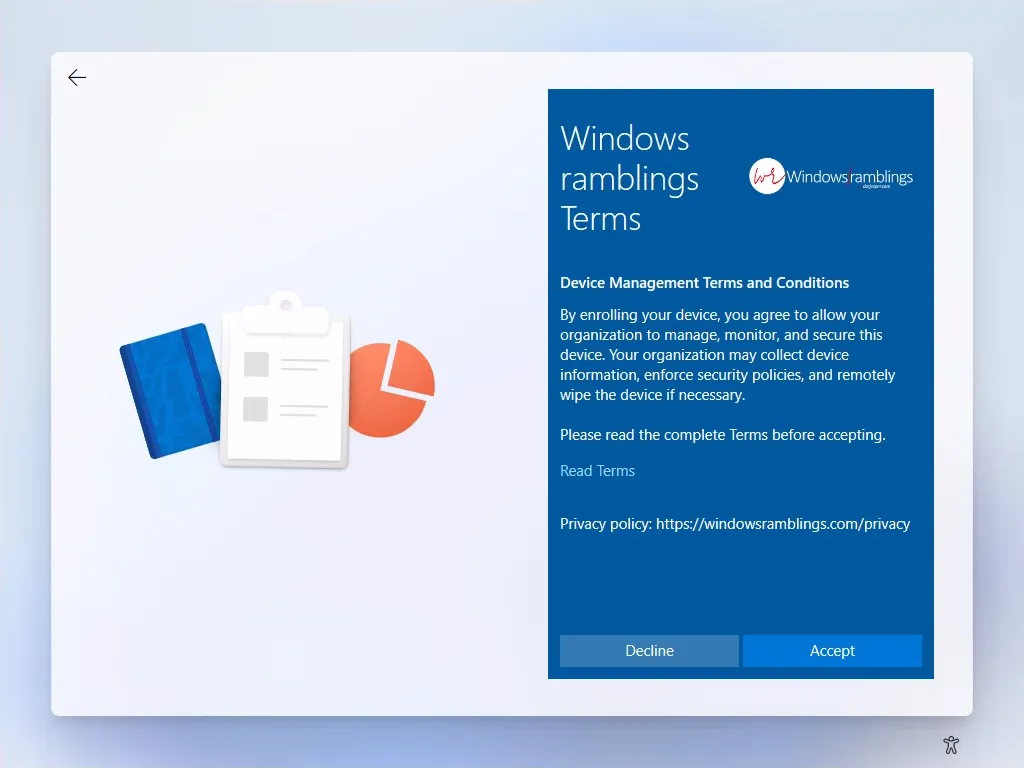
Enrollment: Users must accept the terms and conditions to proceed.

Enrollment: Expanded view of the full terms and conditions.

Company Portal: Users must accept the terms and conditions to proceed.

Company Portal: Expanded view of the full terms and conditions.
Managing Terms and Conditions
Once your terms and conditions are deployed, Microsoft Intune provides tools to manage versions and track user acceptance over time.
Version Control and Updates
Microsoft Intune provides built-in version control for terms and conditions:
- Version tracking: Every time you make a significant change, you can increment the version number.
- Re-acceptance requirement: When you update terms and check the “Require users to re-accept” option, all assigned users must accept the new version before continuing.
- Acceptance reporting: Track which users have accepted which versions.
Tip
As a best practice, only increment the version number for meaningful changes to the terms. Typo fixes and formatting changes typically do not require re-acceptance.Monitoring acceptance
Microsoft Intune provides acceptance reporting to help you track compliance with your terms and conditions:
| Report Field | Description |
|---|---|
| User name | The name of the user who accepted the terms |
| Accepted version | The version number that was accepted |
| Accepted time | Date and time of acceptance |
| Accepted latest | Whether the user has accepted the most current version |
| UPN | The user principal name |
To access these reports:
- Navigate to Tenant administration > Terms and conditions.
- Select your policy from the table.
- Select Acceptance Reporting to view and export the data.
Microsoft Entra Conditional Access Terms of Use
Now, here is where things get interesting. Microsoft Entra ID also offers a terms of use feature as part of Conditional Access. While both features serve similar purposes, they have distinct characteristics and use cases.
Note
In the Microsoft Intune admin center, you will notice a message on the Terms and conditions pane: “Satisfy stricter compliance requirements and improve the end-user experience with the new Microsoft Entra Terms of use feature.” This is Microsoft’s way of pointing you toward the more feature-rich option when your requirements demand it.Microsoft Entra terms of use provides several capabilities beyond what Microsoft Intune offers:
| Capability | Microsoft Intune T&C | Microsoft Entra ToU |
|---|---|---|
| Document format | Plain text | PDF (with branding, images, hyperlinks) |
| Multi-language support | Create separate policies | Attach multiple PDFs to one policy |
| Per-device consent | No | Yes (can require consent on every device) |
| Consent expiration | Manual version updates | Automatic expiration schedules |
| Re-acceptance period | Manual | Configurable (e.g., every 30 days) |
| Conditional Access integration | No | Yes (enforce based on user, app, location, risk) |
| Triggered during | Enrollment / Company Portal | Sign-in to targeted applications |
| Audit logs | Intune reporting | Microsoft Entra audit logs |
| License requirement | Microsoft Intune license | Microsoft Entra ID P1 or P2 |
Key Differences Explained
Trigger point: The most significant difference is when users encounter the terms. Microsoft Intune terms and conditions are presented during device enrollment or when accessing the Company Portal. Microsoft Entra terms of use are presented during sign-in to applications protected by Conditional Access policies.
Rich content: Microsoft Entra terms of use supports PDF documents, allowing for sophisticated formatting, corporate branding, images, and hyperlinks. This is particularly valuable for legal documents that require specific formatting.
Granular targeting: With Conditional Access, you can target terms of use based on specific applications, user groups, locations, device platforms, and risk signals. This enables scenarios like “show terms only when accessing HR applications from unmanaged devices.”
Expiration and re-acceptance: Microsoft Entra terms of use supports automatic consent expiration, allowing you to require periodic re-acceptance without manually updating the terms content.
Should you use both?
The short answer: it depends on your requirements. The longer answer: many organizations benefit from using both in complementary ways.
When to use Microsoft Intune Terms and Conditions
- Device enrollment context: When you specifically need users to acknowledge terms before enrolling their device.
- Simpler requirements: When you need a straightforward text-based acknowledgment without complex formatting.
- Company Portal access: When terms should be visible and accepted within the Company Portal experience.
- Enrollment-focused compliance: When your legal requirement is specifically tied to the act of enrolling a device.
When to use Microsoft Entra Terms of Use
- Application access context: When terms should be presented before accessing specific cloud applications.
- Rich document requirements: When you need PDFs with branding, images, or hyperlinks.
- Periodic re-acceptance: When regulations require users to re-accept terms on a schedule.
- Per-device consent: When users must accept terms on each device they use.
- Risk-based presentation: When terms should only appear under certain conditions (high-risk sign-in, new location, etc.).
Using both together
If you configure both Microsoft Intune terms and conditions and Microsoft Entra terms of use, users will be required to accept both - they are completely independent. This is by design and can be valuable when you have:
- Device-specific terms: Enrollment-related policies in Microsoft Intune (e.g., “By enrolling this device, you agree to allow remote management…”).
- Application-specific terms: Access-related policies in Entra (e.g., “By accessing the HR system, you agree to maintain confidentiality…”).
Note
Microsoft recommends reviewing both solutions to determine the best fit for your organization. See the blog post Choosing the right Terms solution for your organization for detailed guidance.Terms and Conditions with Windows Autopilot Device Preparation
Windows Autopilot device preparation is changing the way we think about device onboarding. Let us explore how terms and conditions fit into this modern provisioning workflow.
The modern enrollment journey
With Windows Autopilot device preparation, the enrollment experience is streamlined:
- User receives a new device (or resets an existing one).
- Device connects to the internet and detects Windows Autopilot configuration.
- User signs in with their organizational credentials.
- Device joins Microsoft Entra ID and enrolls in Microsoft Intune.
- Policies, applications, and configurations are applied.
- User reaches the desktop and begins working.
Where do Terms and Conditions fit?
If you have Microsoft Intune terms and conditions assigned to the user, the timing of when they encounter the terms depends on the enrollment scenario:
- During enrollment: If the user has not previously accepted the terms, they are presented during the Windows enrollment process and must accept before enrollment completes.
- After enrollment: If the device is already enrolled and new terms are assigned (or existing terms are updated), the user must open the Company Portal app to accept the terms.
This distinction is important: terms and conditions do appear during Windows Autopilot provisioning if the user has not yet accepted them.
For scenarios where you need additional control over terms acceptance, consider:
- Microsoft Entra terms of use with Conditional Access: Configure a Conditional Access policy targeting the Microsoft Intune Enrollment app. However, be aware of limitations - per-device terms of use do not support the Microsoft Intune Enrollment app.
- Enrollment Status Page (ESP) requiring Company Portal: Configure the ESP to require Company Portal as a required app, where users will encounter the terms.
Important
When using Conditional Access terms of use with the Microsoft Intune Enrollment app, note that the per-device terms of use setting is not supported for this application. Ensure this app is excluded from any Conditional Access policy requiring per-device terms of use.Legal and Compliance Considerations
For organizations with strict compliance requirements, the timing of terms acceptance matters:
| Scenario | Recommendation |
|---|---|
| Terms must be accepted before any enrollment | Use Microsoft Entra terms of use with Conditional Access targeting the Microsoft Intune Enrollment app |
| Terms must be accepted before accessing corporate resources | Use Microsoft Entra terms of use with Conditional Access targeting specific apps |
| Terms acknowledgment for device management | Use Microsoft Intune terms and conditions for Company Portal acceptance |
| Both enrollment and ongoing compliance | Use both solutions together |
Benefits and legal reasoning
Implementing terms and conditions is not just a technical exercise - it provides real legal and organizational value.
Legal protection
A well-crafted terms and conditions policy strengthens your organization’s legal position in several ways:
- Documented consent: Creates a record that users explicitly agreed to organizational policies.
- Liability limitation: Terms can include disclaimers about monitoring, data collection, and the organization’s rights.
- Policy enforcement basis: Provides a foundation for disciplinary actions related to policy violations.
Compliance requirements
Many industries and regulations require organizations to obtain user acknowledgment:
- GDPR: Transparency requirements about data processing.
- HIPAA: Acknowledgment of policies regarding protected health information.
- Financial regulations: Terms related to handling sensitive financial data.
- Government requirements: Compliance with specific agency mandates.
User awareness
Beyond legal protection, terms and conditions serve an educational purpose:
- Set clear expectations: Users understand what is expected of them.
- Explain device management: Users know the organization can manage, monitor, and remotely wipe their device.
- Reduce support requests: Clear policies reduce confusion and related support tickets.
Best practices
Based on my experience implementing terms and conditions across various organizations, here are my recommendations:
- Keep terms concise and readable: Legal language is necessary, but aim for clarity. Users who understand the terms are more likely to comply.
- Use both solutions strategically: Do not implement both Microsoft Intune and Microsoft Entra terms just because you can. Have a clear purpose for each.
- Plan for localization: If you have a global workforce, plan for translated terms from the start.
- Review and update regularly: Terms should evolve with your policies and regulations. Schedule annual reviews.
- Document your rationale: Keep records of why you implemented specific terms and the legal/compliance requirements they address.
- Test the user experience: Go through the enrollment and sign-in process yourself to ensure the terms appear when and how you expect.
- Communicate with users: Before rolling out new terms, inform users about what to expect and why.
Final thoughts
Terms and conditions policies - whether in Microsoft Intune or Microsoft Entra Conditional Access - are essential tools for organizations that need to establish clear agreements with their users before granting access to devices and resources.
While Microsoft Intune terms and conditions provide a straightforward way to present terms during enrollment and Company Portal access, Microsoft Entra terms of use offers richer capabilities for complex compliance scenarios with Conditional Access integration.
In the context of Windows Autopilot device preparation and modern device management, understanding how these features work together enables you to design an enrollment experience that is both user-friendly and legally compliant.
The future of device management is not about blocking at the door - it is about smart policies, identity-centric security, and clear agreements that protect both the organization and its users.
What is your experience with terms and conditions in your organization? Do you use both solutions, or have you found one to be sufficient? I would love to hear your thoughts - reach out on Bluesky or get in touch.
–Jesper
Header image attribution: Image created with help from Adobe Firefly