Have you ever deployed a configuration policy, only to discover a user or rogue application changed the settings hours later? With traditional MDM, you might not even know until the next sync - and those syncs happen far less frequently than you might expect. Config Refresh gives IT administrators a way to automatically restore policy settings at regular intervals, closing the gap between when drift occurs and when it gets corrected.
What is Config Refresh?
Config Refresh is a Microsoft Intune setting that periodically reapplies your deployed policy settings on Windows 11 devices. Think of it as a safety net: if someone or something changes a setting you’ve configured, Config Refresh will restore it - without waiting for the next scheduled sync or requiring the device to be online.
For those of us who grew up with Group Policy, this behavior feels familiar. Group Policy has always refreshed settings periodically in the background. Microsoft Intune policies, however, traditionally only reapply during device sync operations. Config Refresh bridges this gap, letting you set a refresh interval anywhere from 30 minutes to 24 hours.
Key features of Config Refresh include:
- Automatic restoration: Resets settings managed through the Policy CSP to their intended state.
- Configurable timing: Set refresh intervals from 30 minutes up to 24 hours based on your needs.
- Works offline: No connectivity to Microsoft Intune required - the refresh happens locally.
- Pause for troubleshooting: Temporarily disable Config Refresh when you need to diagnose issues.
Important
Config Refresh is designed to work with Microsoft Intune policies managed by the Policy CSP . Some policies, notably the BitLocker CSP, also adhere to Config Refresh. However, other policies are outside this scope , such as Firewall, AppLocker, PDE, and LAPS.Why Config Refresh Matters
In enterprise environments, configuration drift is a common challenge. Users might intentionally or unintentionally change device settings, malware could modify security configurations, or third-party applications might alter system settings. Without a mechanism to automatically restore the intended configuration, devices can fall out of compliance, creating security vulnerabilities.
Config Refresh addresses these concerns by:
- Preventing configuration drift: Automatically restores settings to their intended state.
- Enhancing security posture: Ensures security-critical settings remain enforced.
- Reducing administrative overhead: Minimizes manual intervention for policy enforcement.
- Supporting offline scenarios: Works even when devices are disconnected from the Microsoft Intune service.
Prerequisites
Before implementing Config Refresh, ensure your environment meets the following requirements:
| Requirement | Details |
|---|---|
| Operating System | Windows 11, version 21H2 with KB5035854 [10.0.22000.2836] or later, or Windows 11, version 22H2 with KB5034848 [10.0.22621.3235] or later |
| Licensing | Microsoft Intune Plan 1 license (included in Microsoft 365 E3, E5, F1, F3, Enterprise Mobility + Security E3/E5, and Business Premium) |
| Enrollment | Devices must be enrolled in Microsoft Intune |
Configuring Config Refresh in Microsoft Intune
Follow these steps to enable and configure Config Refresh for your Windows 11 devices:
- Sign in to the Microsoft Intune admin center .
- Navigate to Devices > Configuration profiles > Create profile.
- Select Windows 10 and later as the platform.
- Choose Settings catalog as the profile type.
- Select Create.
- Enter a descriptive name for the profile (e.g., “Windows 11 - Config Refresh Policy”).
- Select Next and then Add settings.
- Search for Config Refresh in the settings picker.
- Select the Config Refresh category and add the following settings:
- Enabled: Set to Enabled to turn on Config Refresh
- Cadence: Configure the refresh interval in minutes (30-1440, default is 90)
- Select Next and assign the profile to the appropriate device groups.
- Review and create the profile.
Once deployed, Config Refresh will automatically enforce your policy settings at the configured interval.
Config Refresh Under the Hood
Understanding how Config Refresh works can help with troubleshooting and verification. Here’s what happens behind the scenes:
Registry Configuration
When Config Refresh is enabled, Windows stores the configuration in the registry at:
[HKEY_LOCAL_MACHINE\SOFTWARE\Microsoft\Enrollments\<Enrollment-ID>\ConfigRefresh]You can verify the settings by checking the following values:
- Cadence: The configured refresh interval in minutes
- Enabled: 1 (enabled) or 0 (disabled)
- PausePeriod: Minutes remaining on a pause (0 when not paused). This value only appears after Config Refresh has been paused at least once.
For example, with Config Refresh enabled and set to a 45-minute cadence:
[HKEY_LOCAL_MACHINE\SOFTWARE\Microsoft\Enrollments\<Enrollment-ID>\ConfigRefresh]
"Cadence"=dword:0000002d # 45 in decimal
"Enabled"=dword:00000001
"PausePeriod"=dword:00000000
Registry settings for Config Refresh
Scheduled Task
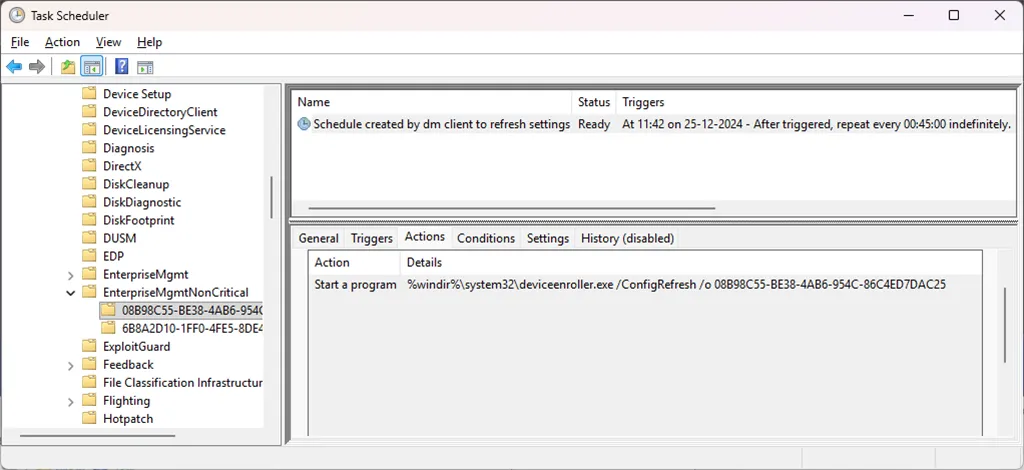
Config Refresh creates a scheduled task in Task Scheduler under: Task Scheduler Library > Microsoft > Windows > EnterpriseMgmtNonCritical > guid > Schedule created by dm client to refresh settings.
The scheduled task:
- Shows the current cadence in the Triggers
- Executes
deviceenroller.exeto force the refresh
Image viewer
You can use PowerShell to validate the Config Refresh scheduled task - useful for remediation scripts or proactive monitoring:
# Description: Retrieves the Config Refresh scheduled task and displays its status
# Elevation required - Querying this scheduled tasks require elevated privileges
$tName = "*refresh settings*"
$tPath = "\Microsoft\Windows\EnterpriseMgmtNonCritical\*"
$tGet = Get-ScheduledTask -TaskPath $tPath -TaskName $tName -ErrorAction SilentlyContinue
if ($tGet) {
    $taskInfo = $tGet | Get-ScheduledTaskInfo
    [PSCustomObject]@{
        TaskName       = $tGet.TaskName
        State          = $tGet.State
        LastRunTime    = $taskInfo.LastRunTime
        LastTaskResult = $taskInfo.LastTaskResult
        NextRunTime    = $taskInfo.NextRunTime
    }
} else {
    Write-Warning "Config Refresh scheduled task not found. Verify Config Refresh is enabled."
}
Validate Config Refresh Scheduled Task
TaskName       : Schedule created by dm client to refresh settings
State          : Ready
LastRunTime    : 2025-07-27 09:12:01
LastTaskResult : 0
NextRunTime    : 2025-07-27 09:57:00
Sample Output of Config Refresh Scheduled Task Validation
Remote Device Action: Pause Config Refresh
During troubleshooting or maintenance scenarios, administrators may need to temporarily disable automatic policy enforcement on a device. Microsoft Intune provides a dedicated remote action that allows you to pause Config Refresh on individual devices for up to 24 hours.
Prerequisites for Pause Config Refresh
- Device must be running Windows 11
- Config Refresh must be enabled on the device
- Administrator must have the Remote tasks/Run Pause Configuration Refresh permission
How to Pause Config Refresh
- In the Microsoft Intune admin center , navigate to Devices > All devices.
- Select the target device from the list.
- At the top of the device overview pane, locate the remote action icons.
- Select Pause Config Refresh.
- Specify the duration in minutes (0-1440, maximum 24 hours).
- Select Pause.
To resume Config Refresh before the pause period expires, repeat the process and set the time period to 0 minutes.
Note
After the specified pause period ends, Config Refresh automatically resumes, reinstating the intended settings.Troubleshooting Config Refresh
Config Refresh logs activity to the Windows Event Viewer. Navigate to Applications and Services Logs > Microsoft > Windows > DeviceManagement-Enterprise-Diagnostics-Provider > Operational.
Key event IDs to monitor:
| Event ID | Description |
|---|---|
| 4200 | Config Refresh started |
| 4201 | Config Refresh failed |
| 4202 | Config Refresh completed successfully |
| 4203-4214 | Errors setting or deleting Config Refresh values |
Considerations and Best Practices
When implementing Config Refresh, keep these considerations in mind:
Policy Conflicts
Be cautious when using Config Refresh alongside other policy enforcement mechanisms such as Group Policy or third-party MDM solutions. In environments where both Microsoft Intune and Group Policy are used, understand which tool has precedence. By default, Group Policy overrides MDM settings unless the MDMWinsOverGP setting is enabled (available from Windows 10 version 1803 onwards).
Scope of Enforcement
Config Refresh specifically reinforces settings managed by the Policy Configuration Service Provider (CSP). It does not reapply configurations outside this scope, such as:
- Firewall policies
- AppLocker rules
- Personal Data Encryption (PDE)
- Local Administrator Password Solution (LAPS)
Config Refresh does not protect itself
An important security consideration: Config Refresh does not refresh its own settings. The Config Refresh configuration is stored in the Enrollments registry key (HKLM\SOFTWARE\Microsoft\Enrollments\<Enrollment-ID>\ConfigRefresh), which is outside the scope of the Policy CSP that Config Refresh monitors.
This means a local administrator could disable Config Refresh by setting the Enabled value to 0 in the registry. Config Refresh would not restore this setting - the protection would remain disabled until the next Microsoft Intune sync reapplies the policy. Similarly, the scheduled task could be disabled or deleted.
The good news is that when the next Microsoft Intune policy sync occurs (approximately every 8 hours), the Config Refresh settings will be reapplied - re-enabling the registry value and recreating or re-enabling the scheduled task. This limits the window of exposure, but in security-sensitive environments, even a few hours without Config Refresh protection may be unacceptable.
Monitoring Config Refresh with Custom Compliance
While the Microsoft Intune admin center does not provide a built-in view to detect Config Refresh tampering, you can use a custom compliance script to report devices as non-compliant when Config Refresh has been disabled. Unlike Remediations that might only run once a day, custom compliance integrates with Conditional Access - allowing you to block access to corporate resources until the device is compliant again.
The script below checks if Config Refresh is enabled and if the scheduled task is running. Importantly, it also detects if Config Refresh has been legitimately paused via the remote action - in that case, the device remains compliant since the pause was an intentional administrative action.
Custom compliance discovery script
Click to expand<#
.SYNOPSIS
Custom compliance policy script for Windows Config Refresh status.
.DESCRIPTION
This script will return the Config Refresh status for custom compliance evaluation.
It checks the registry for Config Refresh enabled/paused state and validates the scheduled task status.
.EXAMPLE
.\discovery.ps1
.EXAMPLE
.\discovery.ps1 -verbose
.NOTES
version: 1.0
author: Jesper Nielsen
date: March 21, 2025
#>
#requires -Version 5.1
#Requires -RunAsAdministrator
[CmdletBinding()]
param ()
begin {
#variables :: conditions
[bool]$runScriptIn64bitPowerShell = $true
#variables :: environment
[bool]$configRefreshEnabled = $false
[bool]$configRefreshPaused = $false
[bool]$scheduledTaskReady = $false
}
process {
#region check conditions
if ($runScriptIn64bitPowerShell -eq $true -and $([System.Environment]::Is64BitProcess) -eq $false) {
Write-Error -Message "Windows PowerShell 64-bit is requered." -Category "ResourceUnavailable" -ErrorId "B001"
exit 1
}
#endregion
try {
# Check registry for Config Refresh status
$enrollmentPath = "HKLM:\SOFTWARE\Microsoft\Enrollments"
if (Test-Path $enrollmentPath) {
Get-ChildItem -Path $enrollmentPath -ErrorAction SilentlyContinue | ForEach-Object {
$configRefreshPath = Join-Path $_.PSPath "ConfigRefresh"
if (Test-Path $configRefreshPath) {
$props = Get-ItemProperty -Path $configRefreshPath -ErrorAction SilentlyContinue
if ($props.Enabled -eq 1) { $configRefreshEnabled = $true }
if ($props.PausePeriod -gt 0) { $configRefreshPaused = $true }
}
}
}
# Check scheduled task status (skip if Config Refresh is paused)
if (-not $configRefreshPaused) {
$task = Get-ScheduledTask -TaskPath "\Microsoft\Windows\EnterpriseMgmtNonCritical\*" -TaskName "*refresh settings*" -ErrorAction SilentlyContinue
if ($task -and $task.State -eq "Ready") { $scheduledTaskReady = $true }
}
else {
# When paused, scheduled task state is expected to be different
$scheduledTaskReady = $true
}
}
catch {
$errMsg = $_.Exception.Message
Write-Error -Message $errMsg
exit 1
}
finally {}
}
end {
$hash = @{ ConfigRefreshEnabled = $configRefreshEnabled; ConfigRefreshPaused = $configRefreshPaused; ScheduledTaskReady = $scheduledTaskReady }
return $hash | ConvertTo-Json -Compress
}Compliance Discovery script for Config Refresh
Create the corresponding compliance policy JSON:
{
  "Rules": [
    {
      "SettingName": "ConfigRefreshEnabled",
      "Operator": "IsEquals",
      "DataType": "Boolean",
      "Operand": true,
      "MoreInfoUrl": "https://learn.microsoft.com/mem/intune/configuration/config-refresh",
      "RemediationStrings": [
        {
          "Language": "en_US",
          "Title": "Config Refresh is disabled",
          "Description": "Config Refresh has been disabled on this device. Please sync your device to restore compliance."
        }
      ]
    },
    {
      "SettingName": "ScheduledTaskReady",
      "Operator": "IsEquals",
      "DataType": "Boolean",
      "Operand": true,
      "MoreInfoUrl": "https://learn.microsoft.com/mem/intune/configuration/config-refresh",
      "RemediationStrings": [
        {
          "Language": "en_US",
          "Title": "Config Refresh scheduled task is not running",
          "Description": "The Config Refresh scheduled task has been disabled or removed. Please sync your device to restore compliance."
        }
      ]
    }
  ]
}
Custom Compliance Policy JSON for Config Refresh
Deploy the custom compliance script in Microsoft Intune (Devices > Compliance > Scripts), then reference it in a compliance policy. Non-compliant devices will appear in the compliance reports, and you can pair this with Conditional Access to enforce access restrictions until the next policy sync restores Config Refresh.
While custom compliance provides visibility into tampering, it only detects the issue after the fact - meaning configuration drift may have already occurred before the device is flagged as non-compliant. The device remains exposed until either the next Microsoft Intune sync restores Config Refresh (up to 8 hours) or a manual sync is triggered. For environments requiring stronger protection, consider removing local administrator rights to prevent tampering in the first place - a defense-in-depth approach that complements the monitoring strategy.
Recommended Refresh Cadence
Consider your organization’s security requirements when setting the refresh cadence:
- 30 minutes: For high-security environments requiring strict compliance
- 90 minutes: Default setting, suitable for most organizations
- 1440 minutes (24 hours): For environments with less stringent requirements or limited bandwidth concerns
Final Thoughts
Microsoft Intune Config Refresh is a powerful feature for maintaining device compliance and preventing configuration drift on Windows 11 devices. By automatically reapplying policy settings at regular intervals - even when devices are offline - Config Refresh helps IT administrators ensure consistent security configurations across their managed device fleet.
Config Refresh is like BitLocker policies - not something to talk about, just enable it. Once configured, it quietly does its job in the background, keeping your devices compliant without requiring ongoing attention.
Whether you’re managing a small fleet or thousands of devices, Config Refresh reinforces your security posture and ensures your Windows 11 environment remains aligned with organizational standards. Combined with the ability to pause Config Refresh for troubleshooting scenarios, this feature provides the flexibility and control modern IT teams need.
Happy exploring!
–Jesper