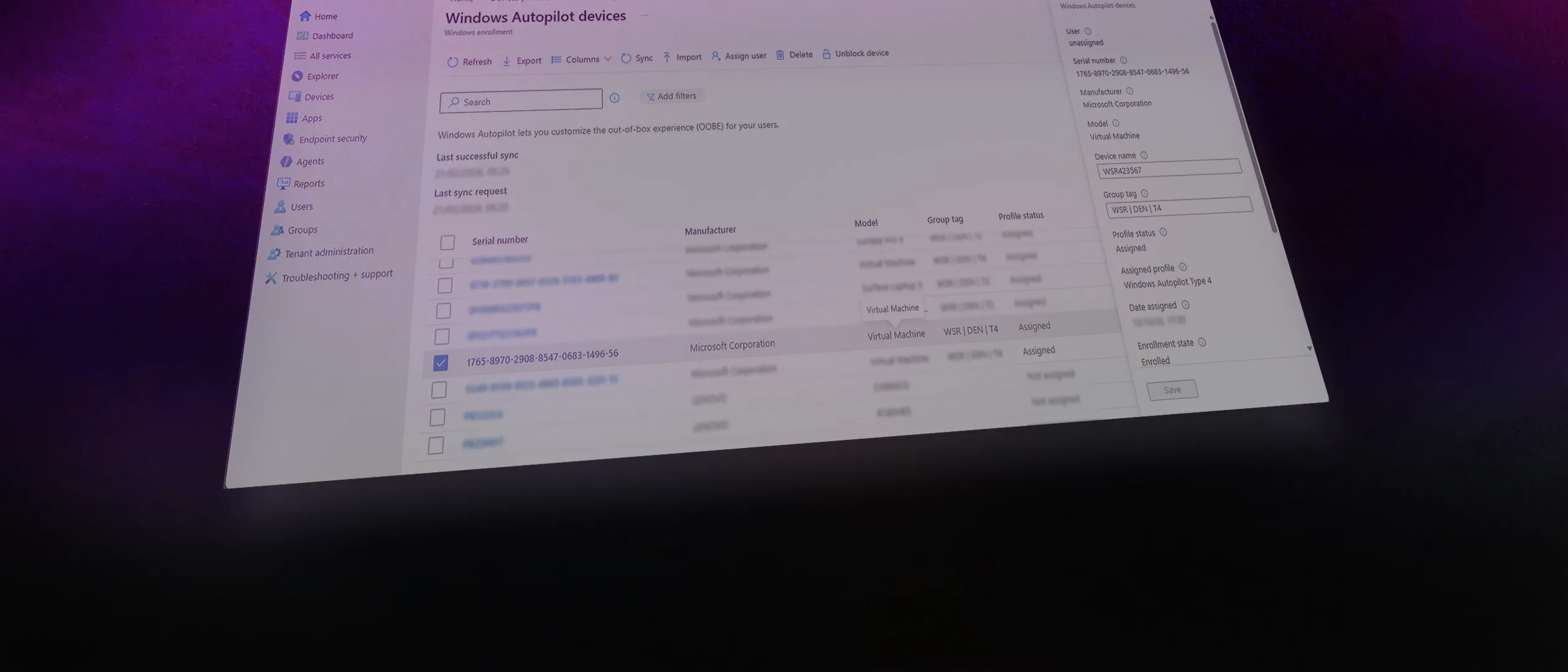
How do you find the right Hyper-V virtual machine in the Windows Autopilot devices list when you need to configure a unique device name?
Testing Windows Autopilot enrollment flows is a regular part of my work with device management. I use Hyper-V virtual machines to simulate the out-of-box experience and validate that profiles, apps, and policies apply correctly before rolling changes out to physical hardware. A key part of that workflow is assigning a consistent device name to each VM in Windows Autopilot - but first you need to identify which Autopilot device corresponds to which VM.
The serial number is how you match a Hyper-V VM to its entry in the Windows Autopilot devices list - but that information is not exposed in the Hyper-V Manager console. The usual method for physical hardware, Get-WmiObject Win32_BIOS, does not work for virtual machines. For Hyper-V guests, the serial number lives in a different WMI namespace - root\virtualization\v2 - specifically in the Msvm_VirtualSystemSettingData class.
Retrieving serial numbers from Hyper-V guests
Retrieving serial numbers from Hyper-V guests requires querying the virtualization WMI namespace on the host. The following PowerShell snippet prints out all virtual machines on a Hyper-V server along with their BIOSSerialNumber:
# Description: Retrieves serial numbers for all Hyper-V virtual machines on the host
# Elevation is required - WMI query against the Hyper-V virtualization namespace requires elevated privileges

Get-WmiObject -ComputerName "$env:computername" -Namespace root\virtualization\v2 `
  -Class Msvm_VirtualSystemSettingData |
  Select-Object elementname, BIOSSerialNumber |
  Sort-Object elementname
Get Hyper-V guest serial numbers
The output of the above Get-WmiObject command looks like this:
elementname  BIOSSerialNumber
-----------  ----------------
hyperv-vm-01 1111-2222-3333-4444-5555-6666-77
hyperv-vm-02 1112-2223-3334-4445-5556-6667-77
Example output
With the serial number in hand, you can locate the correct device in the Windows Autopilot devices list and configure a unique device name for it. I name my VMs deliberately on the Hyper-V host and then assign the same name in Windows Autopilot, so the device name is consistent across the Hyper-V console, Microsoft Intune, and Microsoft Defender.
This consistency matters for two reasons. First, it makes troubleshooting much easier - when a VM does not enroll as expected, I can quickly trace the device across portals without guessing which entry belongs to which VM. Second, it helps manage device sprawl in the Microsoft Defender portal. Test VMs that are reset or reinstalled tend to leave behind stale device records. By reusing a consistent name, the same device is easier to find even after multiple resets, and the portal does not fill up with what looks like dozens of different devices when it is actually the same VM.
Running a single command on the host is much faster than connecting to each VM individually, especially when you are managing multiple Hyper-V VMs for testing purposes.
Getting more details for a specific VM
If you need more detailed information about a specific VM beyond the serial number, you can use the Get-VM cmdlet to retrieve all properties:
# Description: Retrieves all properties for a specific Hyper-V virtual machine
# Elevation is required - Get-VM requires Hyper-V management privileges

Get-VM -Name "yourvm.yourdomain.com" | Select-Object *
Get all properties for a specific VM
This gives you the full picture of the VM configuration, which can be useful for documentation or troubleshooting when something does not go as expected during enrollment testing. It is also handy when you need to verify that a VM name on the host matches what you have configured in the Windows Autopilot devices list.
–Jesper